How to Convert a Bank Statement PDF to CSV or Excel Without Retyping It
Your bank gives you a PDF. Your accountant, your spreadsheet and every tool you own want a CSV. In between sits an hour of copying, pasting and repairing columns that split in the wrong places — repeated for every month, every account, every year.
This is one of the most-searched small-business problems on the internet, and the reason it keeps being searched is that the obvious solutions do not work. Understanding why they fail is what points at the one that does.
Why copy-paste and generic PDF converters mangle statements
A PDF does not contain a table. It contains text positioned at coordinates on a page, and a table is something your eye assembles from the alignment. When you select and copy, you get the text without the geometry — which is why the paste arrives as one column of run-together lines, or as columns shifted by one row wherever a description wrapped onto a second line.
Generic "PDF to Excel" converters try to rebuild the grid by guessing at whitespace. On an invoice with ruled borders that works reasonably. On a bank statement it fails predictably:
- Wrapped descriptions — a long merchant name spills onto a second line and becomes its own bogus transaction row.
- Debit and credit columns — two amount columns get merged into one, and the sign of every transaction is lost.
- Running balance — the balance column gets mistaken for the amount column, or vice versa.
- Page furniture — headers, footers, page numbers and marketing inserts arrive as transaction rows you have to find and delete.
- Multi-account statements — several accounts in one PDF flatten into a single undifferentiated list.
The result is technically a spreadsheet and practically a mess: you still audit every row, and the errors that survive are the quiet kind that reconcile to almost the right number.
What actually works: statement-aware extraction
The fix is a converter that knows it is reading a bank statement rather than an arbitrary document — one that expects a date, a description, an amount and a balance, and uses that expectation to reassemble rows correctly, including the wrapped ones. That is the job Statementer does on Windows.
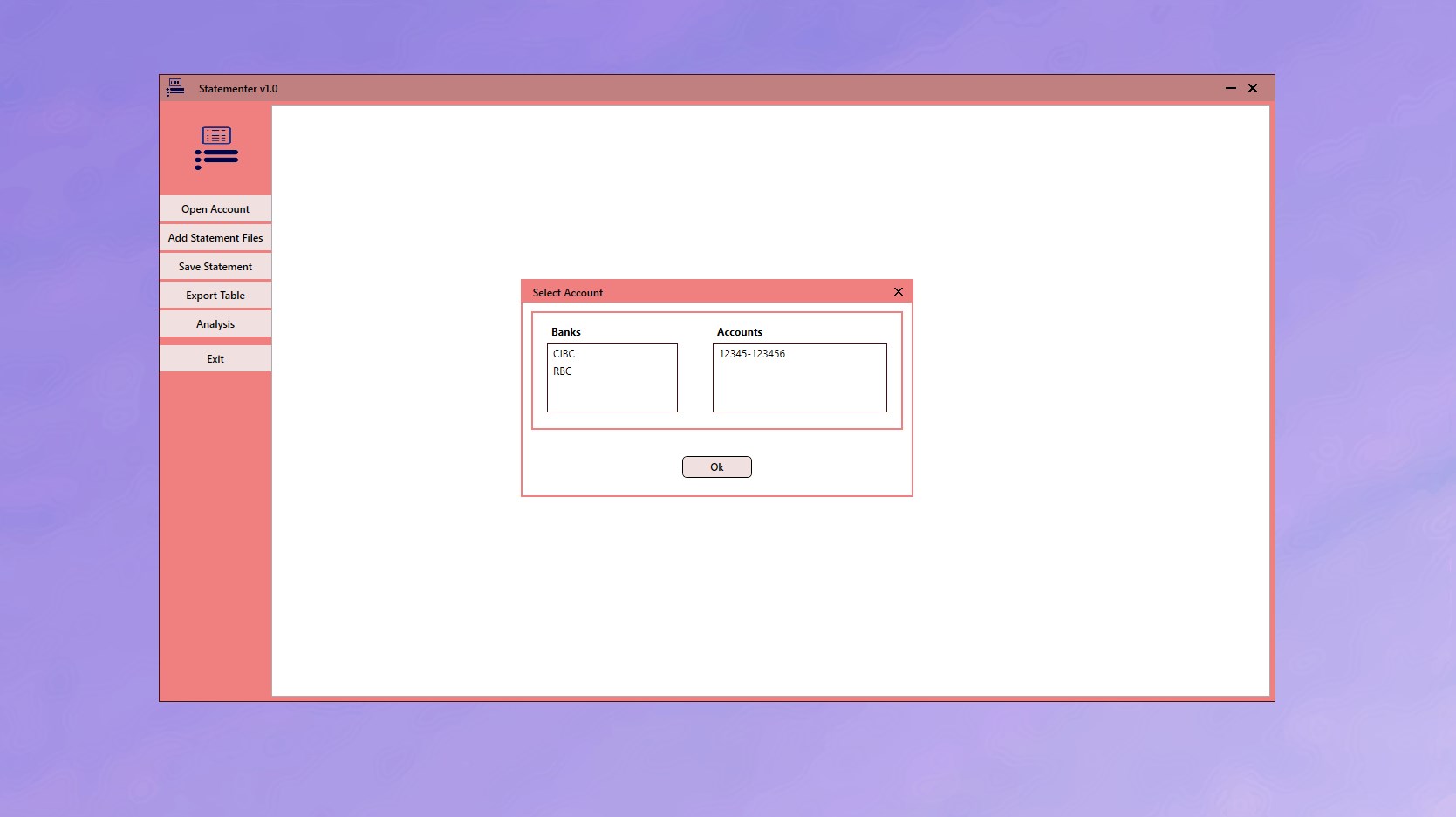
The workflow, start to finish
From a folder of downloaded statement PDFs to a CSV your accounting software will import, the process is five steps and runs entirely on your own machine.
-
Download the statements as PDFs from your bank
Use the download option in online banking rather than printing to PDF or screenshotting, so the file contains real selectable text. Grab the whole period you need at once.
-
Add the files to Statementer
Open the app and choose Add Statement Files. Multiple statements can be loaded together, so a year of monthly PDFs is one operation rather than twelve.
-
Let it separate the accounts
Transactions are sorted by account automatically, so a statement covering several accounts, or a batch mixing them, does not flatten into one undifferentiated list.
-
Check the parsed transactions on screen
Scan the extracted table before exporting. Confirm the row count and the opening and closing entries against the PDF — this two-minute check is what makes the export trustworthy.
-
Filter down if you only need part of it
Use search to narrow to a date range, an account or a merchant when you only need a subset — an expense category, one supplier, a single quarter.
-
Export to CSV
Export the full statement or just the filtered view as structured CSV, then import into Excel, Google Sheets or your accounting software with its column-mapping step.
One caveat worth stating up front. This works on the PDFs your bank generates — the ones you download from online banking, where the text is real text. A scanned or photographed statement is an image, and reading it is an OCR problem, not a parsing one. If you can select the text in your PDF viewer, you have the right kind of file.
Getting the CSV into your accounting software
Structured CSV is the common denominator: Excel, Google Sheets, QuickBooks, Xero, Wave and essentially every bookkeeping tool accept a CSV import with a column mapping step. Two habits make that import go cleanly:
- Export one account at a time. Most accounting tools import into a single ledger, so one file per account per period avoids reconciling the wrong transactions to the wrong books.
- Check the first and last row against the PDF. Confirm the opening and closing entries match and the row count is right. If both ends line up, the middle almost always does.
Why do this locally rather than on a website
Most search results for this problem are websites that ask you to upload the statement. That is a meaningful decision rather than a convenience: a bank statement contains your account number, your address, your income, your balances and a complete record of where you spend money. Statementer is a desktop application, so the PDF is read on your PC and nothing is transmitted. That question is worth its own page — what you actually hand over when you upload a statement.
Get Statementer
Read bank statement PDFs into clean, structured CSV — on your own Windows PC.
View on the Microsoft Store$19.99 USD · one-time purchase · Windows 10 & 11
Frequently asked questions
How do I convert a bank statement PDF to CSV?
Use a converter that is built for statements rather than a generic PDF-to-Excel tool, because statements have wrapped description lines and separate debit, credit and balance columns that generic converters merge or misalign. On Windows, Statementer reads the statement PDF, separates transactions by account, and exports them as structured CSV that Excel, Google Sheets, QuickBooks or Xero can import. The processing happens on your PC, so the statement is never uploaded.
Why does my bank statement paste into Excel as one column?
Because a PDF stores text at coordinates rather than as a table. The rows and columns you see are produced by alignment on the page, not by structure in the file, so copying the text discards the layout. Extracting the data properly requires a tool that reconstructs the table, which is what a statement-aware converter does.
Can I convert a bank statement to Excel for free?
There are free online converters, but they require uploading the statement to a third-party server, and free tiers usually cap pages or add watermarks. If the statement is personal or belongs to a client, the upload is the cost. A one-time-purchase desktop tool such as Statementer at $19.99 processes the file locally with no page limits and no recurring fee.
Will this work on a scanned bank statement?
No — a scanned or photographed statement is an image, and reading it requires OCR, which is a different process with its own error rate. Statementer reads the text-based PDFs that banks generate for download. A quick test: if you can select the text in your PDF viewer, the file will parse; if you cannot, it is a scan.
Can I convert several months of statements at once?
Yes. Statements can be loaded in a batch rather than one file at a time, which is the normal case for year-end preparation or catch-up bookkeeping, and transactions are separated by account automatically so a mixed batch stays organised.
What format does my accountant need?
CSV is the safe default — every bookkeeping package imports it with a column-mapping step. Export one account per file per period rather than combining them, and keep the original PDFs, since your accountant may need the source document for anything queried.