How to Split One PDF Into Separate Files by Its Content
Payroll sends one PDF containing 300 payslips. Accounts sends one file with every invoice for the quarter. The bank sends a year of statements as a single document. In each case you need one file per record, and each record is a different number of pages.
This is the batch-splitting problem, and it is the one case where page-range splitting genuinely cannot help: the boundaries are not at regular intervals, so there is no arithmetic that finds them. Two pages, then one, then four, then two.
Where these files come from
- Payroll runs — every payslip in one PDF, to be distributed individually.
- Invoice and remittance batches — a quarter of documents produced as one print job.
- Bank and card statements — a year, or several accounts, in a single download.
- Bulk scans — a stack of contracts or forms fed through a scanner in one pass.
- System exports — case files, patient records or certificates emitted as one document per export rather than one per record.
Why the usual approaches fail
Splitting every N pages works only if every record is exactly N pages, which is almost never true — one invoice has an extra line and runs to two pages, and everything after it is misaligned. Splitting by bookmarks works only if the producing system wrote bookmarks, which batch print jobs typically do not. And doing it by hand is 300 extractions with 300 chances to make a mistake, on work that is pure transcription.
What the pages do have is text that marks a boundary. Almost every batch document repeats a phrase on the first page of each record and nowhere else — "Invoice Number", "Payslip for period", "Statement of Account", "Page 1 of". That recurring phrase is the split point.
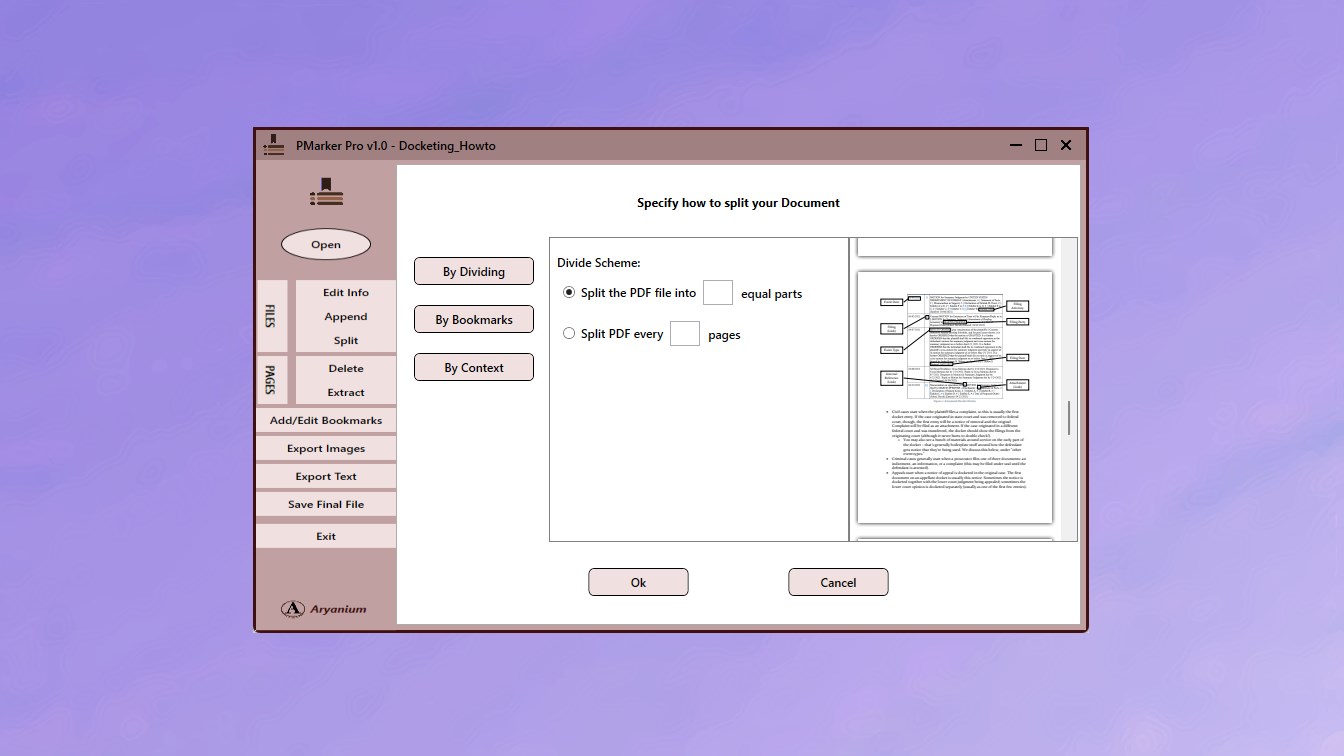
How to split on content
PMarker Pro can split a PDF into pages containing a specific context, which is what makes content-driven splitting possible without scripting it yourself. The whole operation runs on your own Windows PC — worth noting, since batch documents of this kind are usually payroll, financial or client data.
-
Confirm the PDF contains real text
Try selecting a phrase with the cursor. If it highlights, content splitting will work. If nothing selects, the pages are images and you need OCR first or must fall back to page ranges.
-
Find the phrase that starts each record
Look at the first page of two or three records and find wording they share that does not appear on continuation pages — 'Invoice Number:', 'Payslip for period', 'Statement of Account'.
-
Check the phrase does not repeat within a record
This is where content splitting goes wrong. If the phrase also appears on page two of a record, every page becomes its own file. Scan a multi-page record specifically to rule that out.
-
Test on a short extract first
Extract the first twenty pages and split those. Verifying on a small sample takes a minute and avoids discovering a bad split across three hundred output files.
-
Run the split on the full document
Use PMarker Pro to split the PDF into pages containing that context, sending the output to an empty folder so the results are easy to count.
-
Reconcile the counts before distributing
Check that the number of files matches the number of records expected, and that the total pages across all outputs equals the original page count. If both reconcile, the boundaries were correct.
Choose the phrase that appears once per record, not once per page. This is the entire difficulty. "Invoice" appears on every page of every invoice and will split each page into its own file; "Invoice Number:" usually appears only on the first page of each. Test on a short extract before running the whole batch.
A word about scanned batches
Content-based splitting reads the text in the PDF, so it works on documents produced digitally — print jobs, exports, system-generated batches. A batch of scanned paper has no text layer unless it was OCR’d during scanning, and without one there is no content to match on.
The quick test is to open the PDF and try to select the phrase with your cursor. If it highlights, it is real text and the split will work; if nothing selects, the page is an image and you would need to OCR the file first, or fall back to splitting by page range.
Naming and checking the output
The output of a 300-way split needs verifying before it is distributed, and the check that catches almost everything is arithmetic: the number of output files should equal the number of records you expected, and the total page count across the outputs should equal the input. If both match, the boundaries were right.
Where the source batch does carry bookmarks — some finance systems do write one per record — splitting on those is more precise than matching text. That route is covered in splitting a PDF by its bookmarks.
Get PMarker Pro
Split batch PDFs into one file per record, by content, bookmark or page range. On your own machine.
View on the Microsoft Store$7.09 USD · one-time purchase · Windows 10 & 11
Frequently asked questions
How do I split a PDF into separate files by content?
Identify a phrase that appears once on the first page of each record — 'Invoice Number:', 'Payslip for period', 'Statement of Account' — and split on that. PMarker Pro on Windows can split a PDF by pages containing a specific context, which turns a single batch document into one file per record without page-range arithmetic. It runs locally, which matters because these batches are usually payroll or financial data.
How do I split a PDF with 300 invoices into separate files?
Not by page count, because invoices vary in length and a single two-page invoice misaligns everything after it. Split on the text instead: find the wording that appears on the first page of every invoice and nowhere else, test it on a short extract, then run it across the full document and reconcile the output count against the number of invoices expected.
Why does splitting every N pages not work for batch documents?
Because records in a batch are rarely a uniform length. One invoice with an extra line runs to two pages, one payslip carries a note onto a second page, and from that point every subsequent split boundary is wrong. Fixed-interval splitting only works when every record is genuinely the same number of pages.
Can I split a scanned PDF by its content?
Only if it was OCR'd during scanning, because content splitting reads the text in the file and a raw scan contains images with no text layer. Test by trying to select a phrase with your cursor: if it highlights, the split will work; if nothing selects, you need to OCR the document first or split by page range.
How do I check a batch split worked correctly?
Reconcile two numbers. The count of output files should equal the number of records you expected, and the total pages across all output files should equal the page count of the original. If both match, the boundaries were right — and this catches the common failure where a repeated phrase split every page into its own file.
What text should I use as the split point?
Wording that appears exactly once per record, on its first page. The frequent mistake is choosing something too general: 'Invoice' appears on every page of every invoice and produces one file per page, whereas 'Invoice Number:' typically appears only on the first. Check a multi-page record before running the batch.