How to Add a Bookmark Outline to a PDF That Has None
A 200-page scanned document with an empty navigation pane is functionally a stack of paper. Every reference means scrolling. Every reader repeats the same search. The document contains everything and gives access to nothing.
Most long PDFs in circulation are flat, and it is rarely anybody’s fault. Scanners produce images with no structure. "Print to PDF" discards the heading hierarchy the source document had. Exports from web systems and case management platforms usually emit page content and nothing else. The outline was never there to lose.
Why the outline matters more than it looks
A bookmark outline is the only navigation a PDF has that survives being emailed, printed to a tablet, or opened in whatever reader the recipient happens to use. A table of contents page with clickable links breaks as soon as pages shift; a text search only works if the document has a text layer, which scans often do not.
For documents that are read by other people under time pressure — bundles, packs, submissions, manuals — the outline is most of the perceived quality of the document. Two files with identical content are not equally useful if only one can be navigated.
The reliable route: build the structure from the parts
Adding bookmarks to a long flat document one at a time is slow, and it is the reason most people give up. The faster approach inverts the problem: instead of annotating a monolith, assemble the document from pieces so that the structure is created as a by-product.
In practice that means splitting the flat PDF at its natural divisions, then merging the pieces back together — because a merge that preserves bookmarks gives each incoming file its own outline entry. PMarker Pro does both halves on Windows, and lets you rename the resulting entries so the outline reads properly.
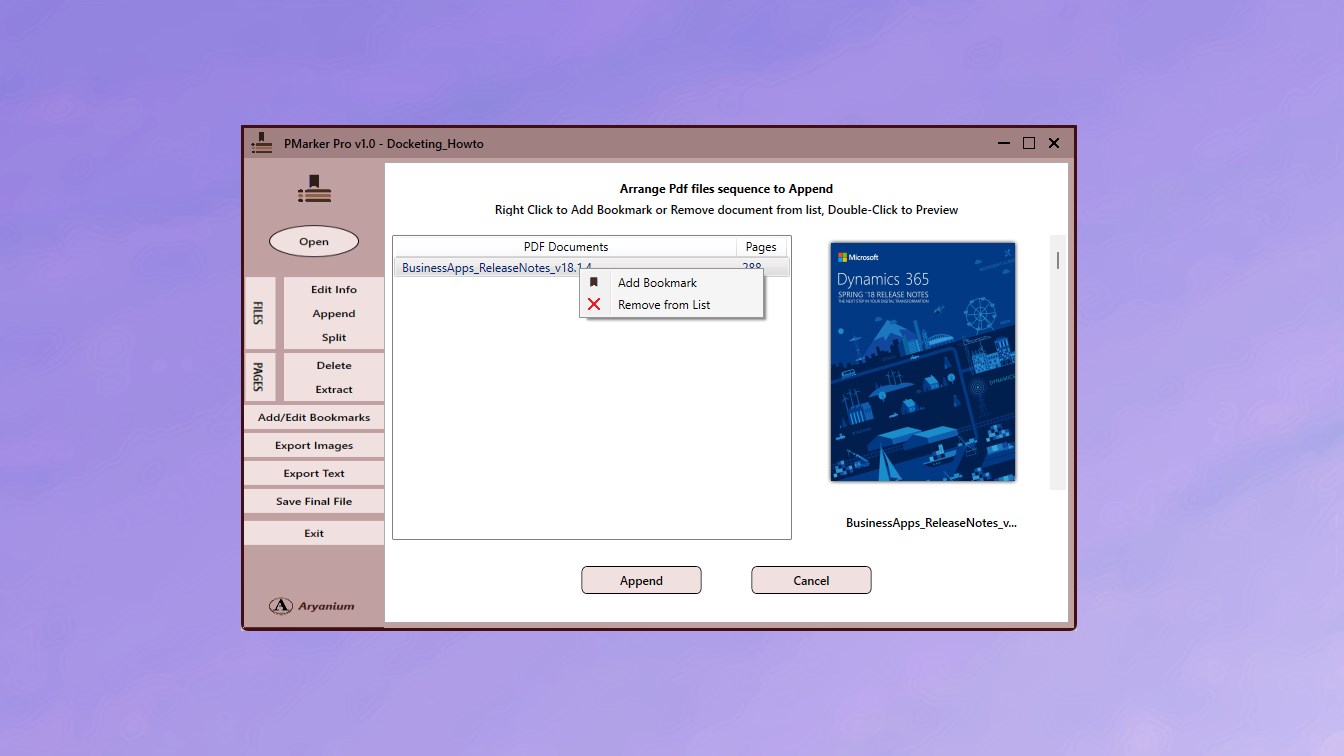
The workflow
This takes about ten minutes for a document with a dozen sections, and the result is a genuine outline rather than a contents page that goes stale.
-
Write down the divisions and their start pages
Scroll the document once and note where each real section begins. This is the only manual reading step, and everything else follows from it.
-
Split the document at those pages
Use Divide PDF File in PMarker Pro to break the flat document into one file per section by page range. You now have the parts of a structured document instead of a monolith.
-
Rename each part to its outline entry
Rename the split files to the exact titles you want in the navigation pane, prefixed 01, 02, 03 to fix the order. This step is the table of contents, written where renaming is fastest.
-
Merge the parts back together
Use Append PDF Files to recombine them in order. Because the merge preserves bookmarks, each incoming file becomes its own top-level outline entry.
-
Tidy the outline
Edit or delete individual bookmarks so the tree reads cleanly — correcting any entry whose title did not survive the round trip the way you wanted.
-
Test it as a reader would
Open the finished PDF, collapse the navigation pane to its top level, and check it fits on one screen and that each entry lands on the right page.
Do the naming at the filename stage. Because each piece’s filename becomes its outline entry, naming the split files well is the same work as writing the table of contents — done once, in a file manager, where renaming is fastest.
How deep to go
The temptation with a new outline is to bookmark everything. Resist it: an outline with two hundred entries is as unusable as one with none, because the reader now has to search the navigation pane.
A useful heuristic is that the outline should fit on one screen without scrolling at its top level. For most documents that means ten to twenty top-level entries, with detail nested beneath only where a section is long enough that someone would want to jump inside it.
A note on scanned documents
Bookmarks work on a scan exactly as they do on any other PDF — they point at page numbers and do not care whether the page is text or an image. So an outline is especially valuable on scanned documents, because it supplies the navigation that a missing text layer would otherwise provide through search.
If you are assembling several documents rather than restructuring one, start instead with merging PDFs without losing the bookmarks, which produces the outline directly.
Get PMarker Pro
Split, merge and edit bookmarks to give any PDF a navigable outline. Windows desktop, one-time purchase.
View on the Microsoft Store$7.09 USD · one-time purchase · Windows 10 & 11
Frequently asked questions
How do I add bookmarks to a PDF that has none?
The fastest reliable route is to split the flat document into one file per section, rename each file to the title you want, then merge them back together with a tool that preserves bookmarks — each incoming file becomes an outline entry. PMarker Pro on Windows does the splitting, the merging and the bookmark editing, so the whole round trip happens in one application on your own PC.
Why do scanned PDFs have no bookmarks?
Because a scanner produces page images and has no knowledge of the document's structure. The same is true of 'print to PDF', which discards the heading hierarchy of the source file, and of most exports from web and case-management systems. The outline was never created, so there is nothing to recover — it has to be added.
Are PDF bookmarks better than a table of contents page?
For navigation, yes. Bookmarks live in the reader's navigation pane, are always visible regardless of where you are in the document, and survive being emailed or opened in a different reader. A contents page has to be found first, and its links break whenever pages shift. Long documents benefit from having both, with the bookmarks doing the real work.
How many bookmarks should a PDF have?
Few enough that the top level fits on one screen without scrolling — typically ten to twenty entries for most documents, with nesting only where a section is long enough that a reader would want to jump inside it. An outline with two hundred entries is as unhelpful as no outline, because it has to be searched itself.
Can you bookmark a scanned PDF?
Yes. Bookmarks point at page numbers and are indifferent to whether the page is text or an image, so they work identically on scans. They are arguably more valuable there, since a scanned document without a text layer cannot be searched, leaving the outline as the only way to navigate.
Do I need Acrobat to edit PDF bookmarks?
No. PMarker Pro is a Windows desktop application that modifies and deletes bookmarks, merges PDFs with their outlines and splits by bookmark, bought once from the Microsoft Store for $7.09 rather than on subscription.