How to Merge PDFs Without Losing the Bookmarks
You merge six carefully bookmarked reports into one submission document, open the result, and the navigation pane is empty. Four hundred pages, no outline, no way to get to section four except scrolling. The work was not lost — it was discarded by the tool you used.
This is the single most common complaint about free PDF mergers, and it is not a bug. It is a consequence of how most of them are built.
Why bookmarks disappear when you merge
A bookmark is not part of the page. The pages of a PDF are one structure; the outline — the tree of bookmarks in the navigation pane — is a separate structure that points at pages by internal reference. Merging two documents means concatenating their pages and grafting their two outline trees together, with every reference renumbered to match the new page order.
The first half is easy. The second is fiddly, and a large number of tools simply skip it:
- Simple page-level mergers copy pages and write no outline at all — the fastest implementation, and the most common in free online tools.
- Print-to-PDF and "combine" shortcuts re-render the pages, which discards the outline along with everything else that is not ink.
- Partial implementations keep the first document’s bookmarks and drop the rest, which is worse than dropping all of them because the result looks fine until someone tries to navigate.
- Broken destinations — some tools keep the bookmark titles but not the renumbered page references, so every bookmark jumps to page 1.
The cost is not aesthetic. A bookmarked 400-page bundle is a navigable document; the same 400 pages without an outline is an archive nobody will read past page 10 — which matters when the reader is a client, a regulator, a judge or a board.
What a correct merge looks like
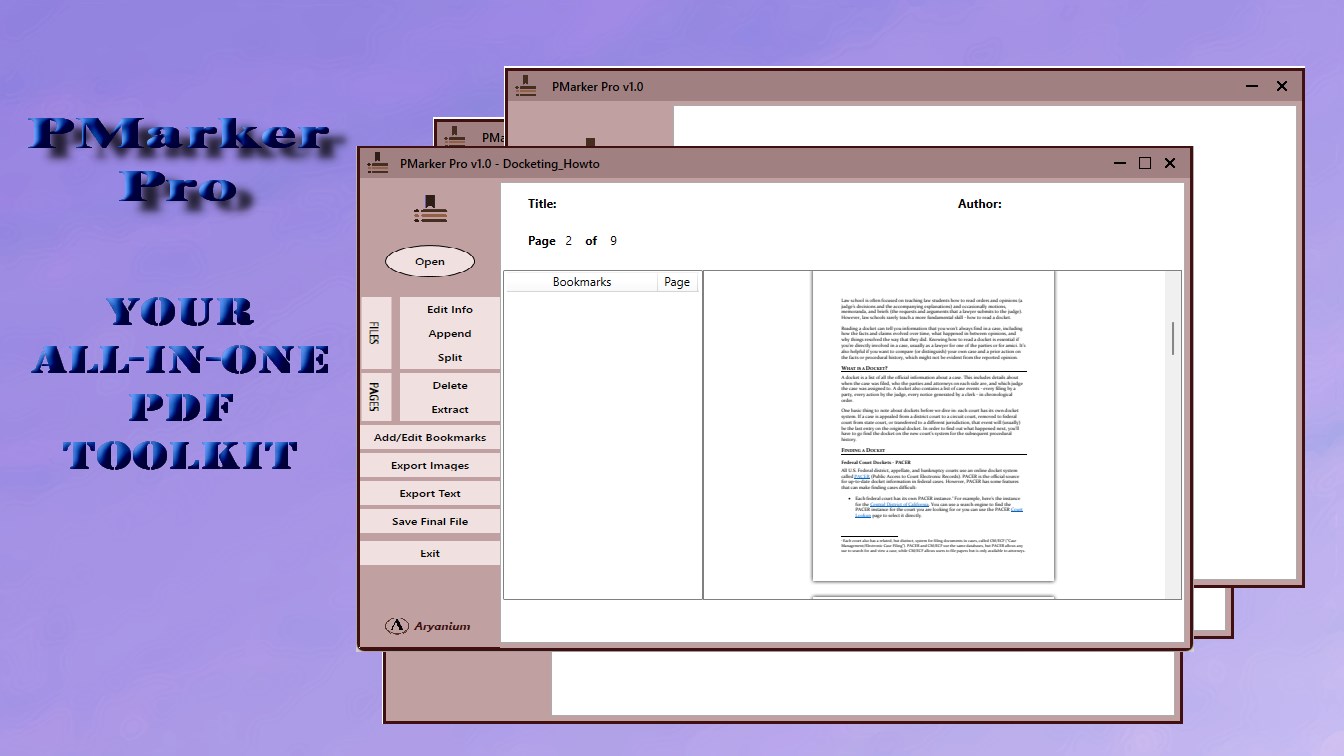
Done properly, merging should produce an outline where each source document becomes a top-level branch, its own internal bookmarks hang beneath it as children, and every entry jumps to the right page in the combined file. That is what PMarker Pro does on Windows: it appends PDFs together with their bookmarks rather than flattening them, and lets you rename or delete individual entries afterwards.
The workflow
The order you add files in becomes the order of the document and of the outline, so the only real preparation is deciding that order before you start.
-
Decide the document order first
The order files are added is the order of both the pages and the outline. Number the filenames — 01, 02, 03 — so the sequence is unambiguous and repeatable next time.
-
Rename files to the names you want in the outline
The filename generally becomes the top-level bookmark for that document, so a descriptive name now saves editing the outline later.
-
Open PMarker Pro and use Append PDF Files
Add all the source PDFs to be combined. This appends the documents together with their bookmarks, rather than copying pages and discarding the outline as simple mergers do.
-
Merge and open the result
Produce the combined file, then open it and look at the navigation pane rather than the pages — that is where a failed merge shows itself.
-
Test the destinations, not just the titles
Click several bookmarks from different source documents and confirm each lands on the right page. Bookmarks that all jump to page 1 mean the references were not renumbered.
-
Tidy the outline
Rename or delete individual bookmarks so the tree reads as one document rather than as six stapled together — collapsing redundant top-level entries and giving each section the title the reader expects.
Name the files the way you want the outline to read. The source filename usually
becomes the top-level bookmark, so 03 Financial Statements.pdf produces a better
outline entry than scan_0034_final_v2.pdf. Renaming files before merging is faster
than renaming bookmarks after.
If a source PDF has no bookmarks of its own
A merge can only preserve bookmarks that exist. Scanned documents, exports from many web systems and anything produced by "print to PDF" typically arrive completely flat, so they contribute a single top-level entry and nothing beneath it.
That is usually acceptable in a bundle — one entry per document is the level of navigation most readers need. Where you need finer structure inside a flat document, the practical route is to split it into its parts and re-merge them so each part becomes its own bookmark. That approach is covered in how to add an outline to a PDF that has none.
Why this is worth doing on the desktop
The documents that most need a preserved outline — court bundles, board packs, due-diligence sets, regulatory submissions, patient or client files — are also the ones least appropriate to upload to a free web service. PMarker Pro is a Windows desktop application bought once from the Microsoft Store, so the files are processed on your own machine, with no page caps and no per-document limits on a deadline.
Get PMarker Pro
Merge PDFs with their bookmarks intact, and edit the resulting outline. Windows desktop, bought once.
View on the Microsoft Store$7.09 USD · one-time purchase · Windows 10 & 11
Frequently asked questions
Why do my bookmarks disappear when I merge PDFs?
Because bookmarks are stored separately from the pages. A PDF's outline is its own structure that points at pages by internal reference, so merging requires both concatenating the pages and grafting the outline trees together with every reference renumbered. Many free mergers implement only the first part and write no outline at all, which is why the combined file opens with an empty navigation pane.
How do I merge PDFs and keep the bookmarks?
Use a tool that merges outlines rather than only pages. PMarker Pro on Windows appends PDF files together with their bookmarks, so each source document contributes its own branch to the combined outline, and lets you rename or delete entries afterwards. It is a desktop application bought once from the Microsoft Store, so the documents are processed on your own PC.
Does Adobe Acrobat keep bookmarks when combining files?
Acrobat's Combine Files feature does generally retain bookmarks, creating an entry per source document. The practical questions are cost and setting — Acrobat Pro is a subscription, and many people hitting this problem are using a free online merger precisely because they do not have it. A one-time-purchase desktop tool covers the same need without a recurring licence.
Why do all my bookmarks point to page 1 after merging?
The titles were copied but the page references were not renumbered for the combined document. This is a partial implementation and is more damaging than dropping bookmarks entirely, because the file looks correct until someone tries to use it. Always test several bookmarks from different source documents after a merge rather than checking only that the outline exists.
Can I merge PDFs with bookmarks without uploading them to a website?
Yes, and for many documents that need a preserved outline — court bundles, board packs, due-diligence sets, patient or client files — you should. PMarker Pro is a Windows desktop application, so merging happens on your own machine with no upload, no page caps and no reliance on a service being available on a deadline.
What happens if one of the PDFs I am merging has no bookmarks?
It contributes a single top-level entry and nothing beneath it, because a merge can only preserve an outline that exists. Scanned documents and print-to-PDF exports are usually flat. For most bundles one entry per document is enough navigation; where you need more, split the flat document into its parts and re-merge so each part becomes its own bookmark.