How to Insert One PDF Into Another PDF
This is not quite the same task as merging. You have a document that is finished — a report, a contract, a submission — and you need to get one more thing into it: the signed page that came back by email, the certificate, the annex someone sent late.
The distinction matters because the main document is the point. You are not making a new combined file out of equals; you are adding something to a document that already has an identity, and the result should still read as that document.
The problem with just stapling it on the end
Appending the extra PDF and saving is the common approach, and it produces a file where the added document is invisible. Someone opening it sees a page count that grew by four and no indication of what those four pages are or why they are there.
In anything that will be read by another person — a client, a reviewer, an authority — that ambiguity is the actual failure. The addition needs a label, and in a PDF the label is a bookmark.
Insert with a bookmark, not just pages
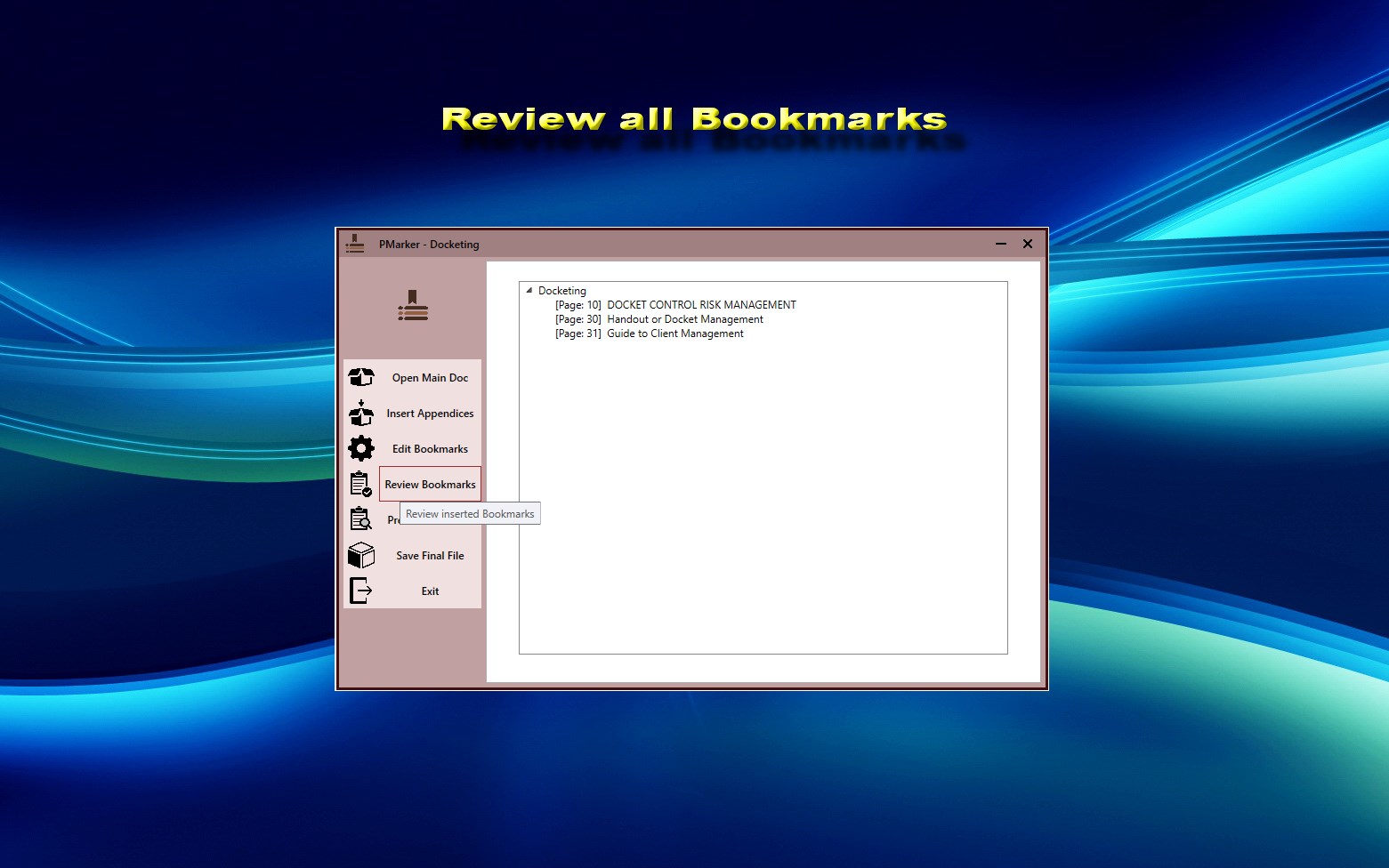
PMarker is built around exactly this shape of task: open the main document, add other PDFs to it, and each addition gets its own bookmark entry. The main document stays the main document; the addition is visible as a named part of it. It is free on the Microsoft Store and runs entirely on your PC.
How to do it
The one decision worth making before you start is what the addition should be called, because that is what the reader will see.
-
Decide what the addition should be called
Name the file the way it should appear to a reader — 'Appendix C — Site Survey', 'Signed Page 12'. This becomes its bookmark entry and is what tells anyone opening the document why those pages are there.
-
Open the main document in PMarker
Start from the document that keeps its identity — the report, the contract, the submission. Everything else is being added to it.
-
Add the PDF you want to insert
Append it to the main document. It arrives as its own bookmark rather than as anonymous extra pages at the end.
-
Adjust the bookmark if the filename was not ideal
Rename or delete the entry so the finished document reads correctly. Editing the bookmark is quicker than renaming the file and redoing the merge.
-
Preview the structure
Check that the main document still reads as itself and the addition sits where a reader would expect to find it.
-
Save as a new file
The output is a new PDF, so the original main document is unchanged and available if the result is not what you wanted.
Give the addition a name that explains why it is there. "Appendix C — Site Survey" or "Signed Page 12" tells a reader everything; "document2" tells them nothing. This single decision does more for the finished file than any other step.
What about inserting in the middle?
Sometimes the addition genuinely belongs partway through — a replacement page, an exhibit that should sit inside a section. Appending places documents in the order you add them, so the usual approach is to build the document in the order you want rather than trying to inject into the middle of an existing file.
Where you need to remove pages that are being replaced, or take an existing document apart first, that is the paid tool’s territory: PMarker Pro deletes and extracts pages by range or by bookmark. The comparison page sets out which of the two covers your case.
A note on signed documents
If the PDF you are adding to carries a digital signature, modifying it invalidates that signature — that is the entire purpose of the signature. Assemble the complete document first and have it signed once at the end, rather than signing and then adding to it.
Get PMarker
Add documents into an existing PDF, each recorded as its own bookmark. Free on Windows.
Get PMarker free on the Microsoft StoreFree · no account, no sign-up · Windows 10 & 11
Frequently asked questions
How do I insert a PDF into another PDF?
Open the main document in a tool that supports appending, add the second PDF to it, and save the result as a new file. PMarker is free on Windows and does this locally, giving the inserted document its own bookmark so a reader can see what was added rather than just finding extra pages at the end.
How do I add a signed page back into a contract PDF?
Add it as a separate document into the main contract and give it a clear bookmark such as 'Signed Page 12'. Note that if the contract itself carries a digital signature, adding anything to it invalidates that signature — assemble the complete document first and sign once at the end.
Can I insert a PDF in the middle of another PDF?
Appending adds documents in the order you add them, so the practical approach is to assemble the file in the order you want rather than injecting into the middle of a finished document. If pages need to be removed or replaced first, that requires page deletion, which is in PMarker Pro rather than the free app.
Why should the inserted document have a bookmark?
Because otherwise it is invisible. A reader opening the file sees a page count that grew with no indication of what the extra pages are or why they are there. A bookmark labels the addition, which matters in anything read by a client, reviewer or authority.
Does inserting pages change the original PDF?
Not if the tool saves the result as a new file, which PMarker does. The original stays untouched, so a merge that came out wrong costs you a redo rather than a recovery. As a general habit, never save a combined document over its own sources.
Is there a free way to add one PDF to another on Windows?
Yes — PMarker is free on the Microsoft Store, runs locally with no upload or account, and creates a bookmark for each document added. Windows itself has no built-in merge command, and the print-to-PDF workaround discards bookmarks and links.