How to Combine PDF Files on Windows
Windows does not include a PDF merger. It opens PDFs in Edge, it prints to PDF, and it will happily store ten thousand of them — but there is no built-in Combine command, which is why searching for one produces so much contradictory advice.
What the advice usually offers is a set of workarounds that technically produce one file out of several. They differ enormously in what they do to the document along the way, and the differences are invisible until something has already been lost.
The methods, and what each one costs you
| Method | What it really does | What you lose |
|---|---|---|
| Print several files to PDF | Re-renders every page as new output | Bookmarks, hyperlinks, sometimes selectable text; file size often grows |
| Insert PDFs into Word, export | Converts and reflows the content | Layout fidelity — this is a conversion, not a merge |
| Online merger website | Uploads, merges server-side, returns a file | Control of the document; bookmarks in most cases; caps on size or volume |
| Adobe Acrobat | A proper merge | Nothing technically — it is a subscription |
| A dedicated desktop merger | A proper merge, locally | Nothing, beyond installing something |
The print-to-PDF route deserves particular caution because it is the one most often recommended and the most destructive. Printing rasterises or re-renders the page: the visual result looks correct, so people assume nothing happened, but the document’s structure — its outline, its links, sometimes its text layer — is gone, and there is no way to recover it from the output.
What a proper merge preserves
A real merge copies the pages as they are and reassembles the document structure around them. The pages are untouched, the text stays selectable, and — in a tool that handles it — the combined file gets a bookmark outline describing what came from where.
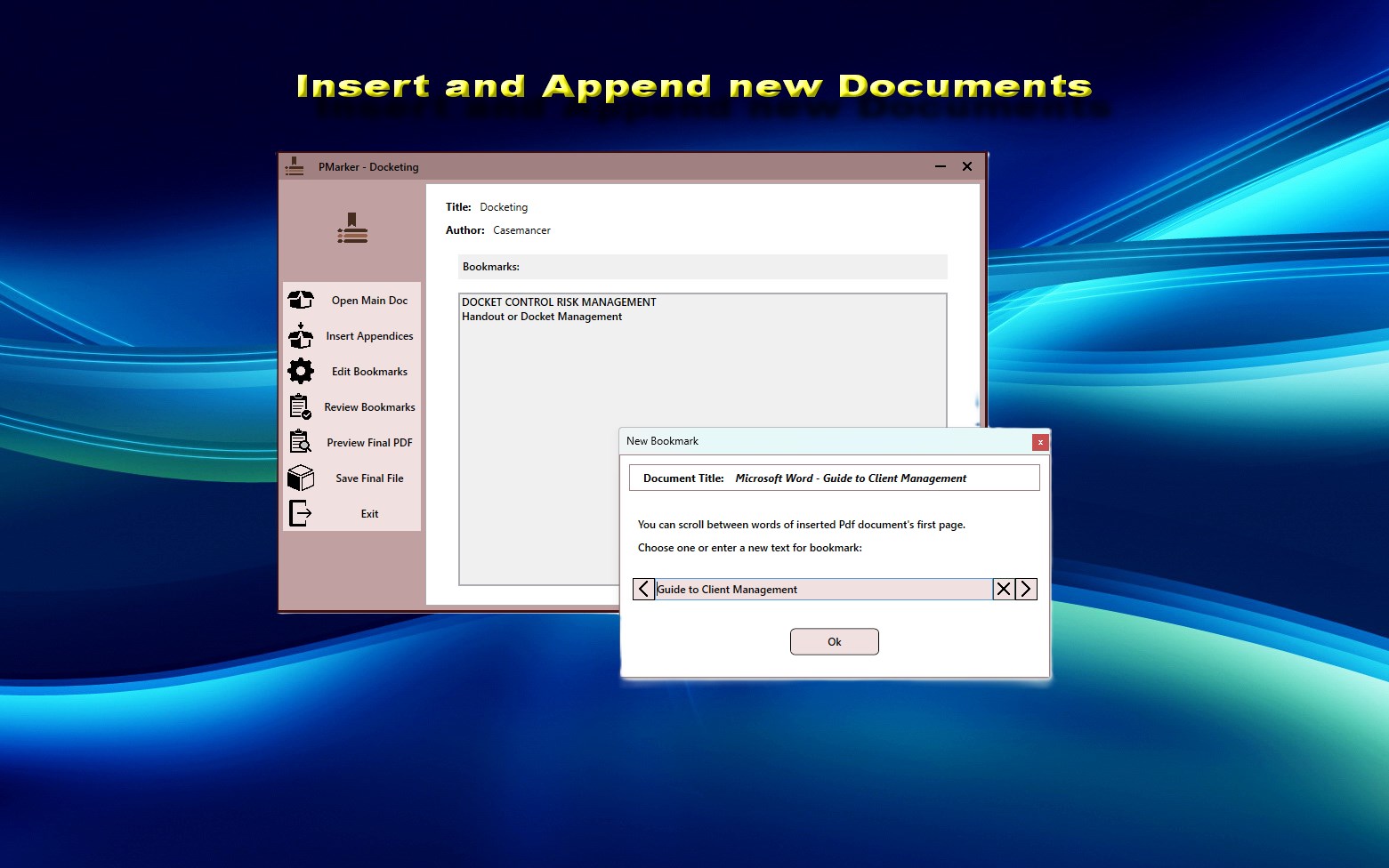
PMarker is a free Windows application that does exactly this: open a main document, append the others, each one becoming its own bookmark, and save the result as a new file.
The steps
Under a minute once the files are named, and the naming is the only part worth thinking about.
-
Gather the files into one folder
Put every document you intend to combine in a single folder so nothing is missed. A file that was somewhere else is the most common reason a merge comes out incomplete.
-
Number and name them in reading order
Prefix 01, 02, 03 and give each a descriptive name. The order is what the combined document will follow, and the names become its bookmark entries.
-
Install PMarker and open the first document
PMarker is free on the Microsoft Store. Open the document that should come first — the main report, contract or base file.
-
Append the remaining documents
Add each one in order. Each becomes its own bookmark, so the combined file can be navigated rather than only scrolled.
-
Review the structure before saving
Check the bookmark entries read correctly and appear in the right order, editing or deleting any that do not.
-
Save as a new file and verify the page count
Save the result under a new name, then confirm its page count equals the total of the sources. A mismatch means a document was duplicated or skipped.
Never merge over your originals. Save the combined document as a new file and keep the sources until you have checked it. Merges go wrong in quiet ways — a document added twice, one omitted, the order wrong — and having the originals makes that a two-minute redo rather than a recovery exercise.
Checking the result
Two checks catch almost every merge error. First, the page count of the combined file should equal the sum of the source documents; if it does not, something was duplicated or skipped. Second, open the navigation pane and confirm every source document appears once, in the right order.
Both take seconds, and both catch problems that are much more expensive to find after the file has been sent.
If you also need to take documents apart
Merging is half the job in most document workflows; the other half is splitting a combined file back into its parts, removing pages, or extracting a section. PMarker does not do those — PMarker Pro does, and the boundary is described in PMarker or PMarker Pro.
Get PMarker
A proper PDF merge on Windows — pages untouched, bookmarks created, nothing uploaded. Free.
Get PMarker free on the Microsoft StoreFree · no account, no sign-up · Windows 10 & 11
Frequently asked questions
Does Windows have a built-in way to combine PDF files?
No. Windows opens PDFs in Edge and can print to PDF, but it includes no merge command. The commonly suggested workarounds — printing several files to a single PDF, or inserting them into Word — technically produce one file but re-render or reflow the content, discarding bookmarks and links in the process.
Why should I not use print to PDF to merge documents?
Because printing re-renders every page rather than copying it. The result looks correct, so people assume nothing was lost, but the bookmark outline, the hyperlinks and sometimes the selectable text layer are gone, and none of it can be recovered from the output. File sizes frequently grow as well.
How do I combine PDFs on Windows for free?
Install a free desktop merger. PMarker is free on the Microsoft Store: you open a main document, append the others, and save the result as a new file, with a bookmark created for each appended document. It runs locally, so nothing is uploaded and there are no daily limits.
Can I merge PDFs in Microsoft Word?
You can insert PDFs into a Word document and export the result, but this is a conversion rather than a merge — Word reflows the content into its own layout engine, so spacing, pagination and formatting will change. Use it only when the source documents are simple and the exact layout does not matter.
How do I check a PDF merge worked correctly?
Compare page counts: the combined file should have exactly as many pages as the sources added together. Then open the navigation pane and confirm each source document appears once and in the right order. Between them these two checks catch duplicated, missing and misordered documents.
Do I need Adobe Acrobat to merge PDF files?
No. Acrobat does it properly, but it is a subscription and merging is a small part of what it offers. A free desktop tool such as PMarker covers merging with bookmarks, and PMarker Pro adds splitting, page editing and metadata as a one-time purchase if you need those too.