How to Attach Appendices to a Report as One PDF
The report is twenty pages. The appendices are two hundred: survey data, correspondence, drawings, certificates, a spreadsheet somebody printed. Sent as twelve separate attachments, roughly nobody will open Appendix G.
Consultants, engineers, planners, researchers and anyone submitting to an authority face this repeatedly, and the assembly is usually done at the end under time pressure — which is why it is so often done badly.
Why one file beats twelve attachments
- Nothing gets separated. Attachments are detached, forwarded individually and lost. A single document arrives complete or not at all.
- References work. "See Appendix D" means something when Appendix D is in the same file the reader has open.
- Version control becomes possible. One file has one version. Twelve attachments have twelve, and the recipient will end up with a mixture.
- It survives the file system. Six months later, a folder of loose PDFs has lost its ordering; a single assembled document has not.
The objection is size, and it is worth taking seriously — a combined document with scanned drawings can be large enough to bounce off an email server. Where that happens, the answer is a link to the file rather than twelve attachments, since splitting it up reintroduces every problem above.
The thing that makes it work: the outline
A 220-page PDF with no navigation is worse than twelve files, because now nothing is findable at all. What makes a combined submission genuinely better is a bookmark outline where each appendix appears by name, so a reader jumps to Appendix D in one click.
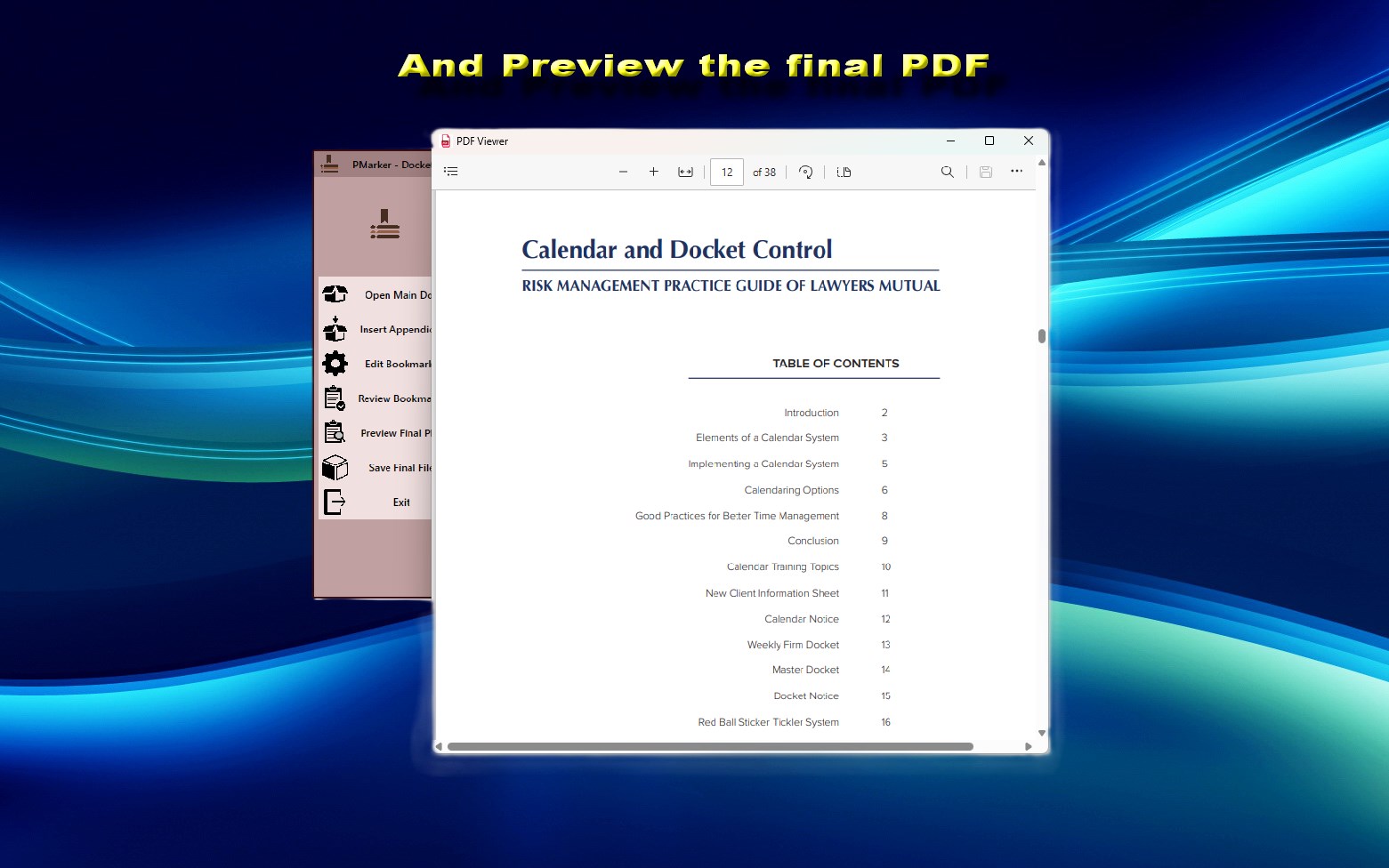
That is precisely what PMarker produces: you open the main report and append each annex, and each becomes its own named entry. It is free, runs on Windows, and does not upload anything — which matters when the report is a client deliverable.
Assembling the document
Most of the work is naming, and naming is what the reader actually experiences.
-
Check every appendix the report refers to exists
Search the report text for each 'Appendix' reference and tick it against your files. A referenced annex that is missing from the pack is the one error the finished document will not reveal.
-
Name each appendix file exactly as the report labels it
Use 'Appendix D — Ground Conditions', matching the report's own wording. The filename becomes the bookmark, and matching wording is what lets a reader move between the text and the outline without translating.
-
Number the files so the order is unambiguous
Prefix them so they sort correctly, since appendix K sorting before appendix B is a common and avoidable annoyance during assembly.
-
Open the main report in PMarker
The report is the base document. Everything else is appended after it, which is also the order a reader expects.
-
Append the appendices in order
Add each annex in turn. Each becomes its own named bookmark, giving the finished document a navigable list of appendices.
-
Review the outline, then save as a new versioned file
Check the entries match the report's labels, then save under a name carrying the version — the originals stay untouched for the next reissue.
Make the appendix names match the report exactly. If the text says "Appendix D — Ground Conditions", the bookmark must say the same. A reader who has to translate between the report’s labels and the outline’s labels will stop using the outline, and you will have built the navigation for nothing.
Get the appendix list right before you assemble
The failure that causes real trouble is not a clumsy merge — it is an appendix referenced in the report that is not in the pack, or one included that nothing refers to. Both are found by the reader rather than by you.
Before assembling, search the report text for every "Appendix" reference and tick each against the files you have. It takes two minutes and it is the check most worth doing, because unlike a merge error it cannot be spotted by looking at the finished document.
Reissuing when an appendix changes
Appendices get revised after issue. Reassemble and reissue the whole document with a new version number rather than sending the replacement annex on its own — a recipient holding a report plus a loose corrected appendix has exactly the version-control problem that assembling the document was meant to solve.
If you need to strip the superseded annex out of an existing pack rather than rebuild from the sources, that requires page or bookmark deletion, which is in PMarker Pro rather than the free app.
Get PMarker
Assemble a report and its appendices into one navigable PDF. Free on Windows.
Get PMarker free on the Microsoft StoreFree · no account, no sign-up · Windows 10 & 11
Frequently asked questions
How do I combine a report and its appendices into one PDF?
Assemble it as a main document with the annexes appended, giving each appendix its own named bookmark so it can be found. PMarker is free on Windows and works this way: open the report, append each appendix, and save as a new file. Naming each file as the report labels it is what makes the finished outline usable.
Should appendices be a separate file or part of the report?
Part of the report, in almost all cases. Separate attachments get detached, forwarded individually and lost, and version control becomes impossible once a recipient holds several files. The exception is size — if the combined document is too large to email, send a link to the single file rather than splitting it back into attachments.
How do I make appendices easy to find in a long PDF?
Give each one a bookmark named exactly as the report refers to it. A 220-page document with no outline is harder to use than separate files, so the navigation is what makes combining worthwhile. Matching the report's own labels matters — a reader who has to translate between two naming schemes will stop using the outline.
What is the most common mistake when assembling a report pack?
An appendix referenced in the text that is not in the pack, or one included that nothing refers to. Neither is visible from looking at the finished document, so search the report for every 'Appendix' reference and tick each against your files before assembling.
How should I handle a revised appendix after issuing a report?
Reassemble and reissue the complete document with a new version number rather than sending the corrected annex on its own. A recipient holding a report plus a loose replacement appendix has the version-control problem that combining the document was meant to prevent.
Can I do this without uploading a client report to a website?
Yes. PMarker runs locally on Windows with no upload and no account, which matters for client deliverables, tender submissions and anything under a confidentiality obligation. It is free on the Microsoft Store.