Screen Recording That Zooms In on the Cursor, on Windows
You record a walkthrough on a 27-inch monitor. The person watching opens it on a laptop in a Teams window, or on a phone. The menu item you spent thirty seconds explaining is now four pixels tall, and the recording is useless for its actual purpose.
This is the central problem of screen recording and it has nothing to do with resolution. A 4K capture of a dense interface is less usable than a 720p capture of a well-framed one, because the viewer sees it scaled to fit their window regardless of how many pixels you recorded.
The three ways people try to solve it
- Zoom the application itself. Works, and costs nothing — but you lose the surrounding context, and many applications do not scale their interface cleanly.
- Add zooms in editing. This is what most polished software demos do, and it produces the best result. It is also slow: every zoom is keyframed by hand, and a five-minute walkthrough can carry twenty of them.
- Record a zoomed region that follows the cursor. The zoom happens at capture time, driven by where you are actually pointing, and there is nothing to edit afterwards.
The third approach is what ViScreen calls floating mouse mode, and it is worth being precise about what it is: the capture region tracks your cursor as you work, so the recording is already close-up on whatever you are pointing at. This is captured live rather than animated in post, which is the trade — you do not get the cinematic eased zoom transitions of a dedicated post-production tool, and you do get a finished, legible recording the moment you stop recording, with no render step and no subscription.
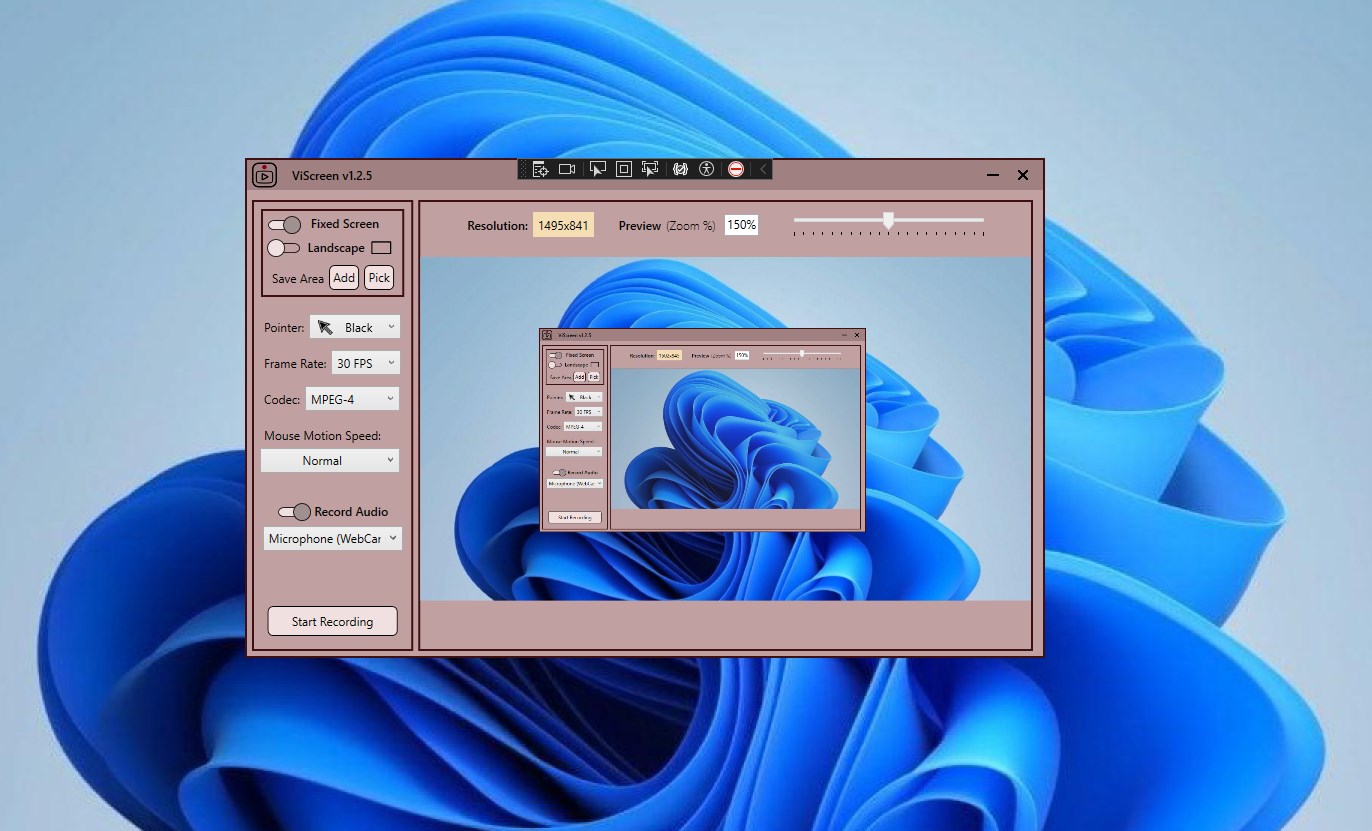
Recording with a cursor-following zoom
The technique that makes this work is entirely about how you move the mouse — the settings take about thirty seconds.
-
Choose floating mouse mode
Select the floating mouse option rather than a fixed frame. The capture region will follow the cursor instead of staying in one place.
-
Set the zoom ratio to match the interface
Denser interfaces need more zoom. Start moderate — enough to make the smallest text you will point at comfortably readable at half the screen size — rather than as tight as possible.
-
Turn on mouse smoothing and pick a visible pointer
Smoothing damps the small involuntary movements that become camera judder when the frame is tracking. A clearly visible pointer matters more than usual, since the cursor is now effectively the subject.
-
Rehearse the cursor path once
Run through the sequence without recording, moving the mouse the way you intend to. Thirty seconds of rehearsal removes most of the backtracking that makes a tracking recording hard to follow.
-
Record, moving deliberately and pausing while you speak
Move slowly between points, stop the cursor while explaining, and park it on the control you are describing. Stillness is what makes the result watchable.
-
Review it at the size your audience will watch
Play it back in a small window or on a phone, not full screen on your monitor. That is the test the recording exists to pass.
Move the cursor as though it were a camera, because it is. This is the whole skill. Move deliberately and slowly, stop moving while you talk, and park the pointer on the thing you are describing rather than waving it around. Idle cursor drift that would be invisible in a normal recording becomes a lurching camera when the frame is following it. Mouse smoothing helps; stillness helps more.
When to use it and when not to
| Use cursor-following zoom for | Use a fixed frame for |
|---|---|
| Dense interfaces — spreadsheets, IDEs, admin panels, CAD | Anything where layout and context matter more than detail |
| Step-by-step instructions where the viewer must see exactly which control you clicked | Presentations and slides, already designed to be legible |
| Support and bug-report recordings watched on small screens | Recordings that will be edited with your own zooms in post |
| Quick walkthroughs where editing time is the binding constraint | Video where a moving frame would be distracting or disorienting |
The failure mode to watch for is disorientation: a frame that follows an unpredictable cursor can leave the viewer unsure where they are in the interface. Establishing the wide view first, then moving into detail, prevents most of it.
How this compares to the post-production tools
Tools such as Screen Studio, popularised on macOS, add smooth animated zooms after recording and produce a more polished result — that is what they are for, and they are priced accordingly, usually as a subscription or a substantially higher one-time cost.
Recording the zoom live is a different trade rather than a worse one: no render step, no editing pass, no recurring fee, and the file is finished when you stop. For support recordings, internal walkthroughs and documentation clips — where the video needs to be clear rather than beautiful, and there are many of them — that trade is usually the right one. ViScreen is a one-time purchase of $14.99 on the Microsoft Store.
Get ViScreen
Record a zoomed view that follows your cursor, with no editing pass and no subscription.
View on the Microsoft Store$14.99 USD · one-time purchase · Windows 10 & 11
Frequently asked questions
Is there a screen recorder for Windows that zooms in on the cursor?
Yes. ViScreen has a floating mouse mode that records a zoomed region tracking your cursor, so whatever you are pointing at fills the frame. The zoom is captured live rather than animated afterwards, which means there is no editing or rendering step — the recording is finished when you stop it. It is a one-time purchase on the Microsoft Store.
What is the Windows alternative to Screen Studio?
Screen Studio is a macOS tool that adds smooth animated zooms in post-production. On Windows the options split into two groups: editors that add zoom effects after recording, which give a more polished result at the cost of an editing pass and usually a subscription, and recorders that capture a cursor-following zoom live, which finish immediately. Which is right depends on whether you are producing a marketing video or a walkthrough.
How do I make small text readable in a screen recording?
Reduce what the viewer has to scale down. The options are zooming the application itself, adding zooms in editing, or recording a zoomed region that follows your cursor. Resolution alone does not solve it — a 4K recording of a dense interface is still unreadable when played back in a small window, which is how most recordings are watched.
Why does my cursor-tracking recording look shaky?
Because small involuntary mouse movements become camera movement when the frame follows the pointer. Enable mouse smoothing, move deliberately between points rather than continuously, and keep the cursor still while you are talking. Treat the mouse as a camera rather than a pointer and most of the judder disappears.
When should I not use a cursor-following zoom?
When context matters more than detail — presentations, slides, anything where the viewer needs to see the whole layout — and when a moving frame would be disorienting. It also adds nothing if you intend to add your own zooms in editing, since you would be zooming twice.
Do I need a subscription for zoom screen recording on Windows?
No. Several tools in this space are subscription-priced, but ViScreen is a one-time purchase of $14.99 on the Microsoft Store, including the floating mouse zoom mode, fixed-frame recording, audio capture and frame-rate and codec selection.