Screen Recorders Without a Watermark or a Subscription
Search for a free screen recorder and everything on the first page is free in a qualified sense: free with a watermark, free for five minutes, free at 720p, or free until you try to export.
Some genuinely free tools exist and are excellent. The category is confusing because the word "free" is doing several different jobs at once, so it is worth separating them before deciding what to use.
What "free" usually means
| Model | What you actually get | Where it bites |
|---|---|---|
| Genuinely free and open source | Full capability, no limits — OBS Studio being the obvious example | Setup complexity; built for streaming, so simple capture takes configuration |
| Built into Windows | Game Bar and Snipping Tool capture, no cost | Limited area control, no aspect framing, oriented around games and windows |
| Free tier of a paid product | Watermark, a time cap, or reduced resolution | Discovered after recording, when re-recording is expensive |
| Free trial | Everything, briefly | Expires mid-project, usually on a deadline |
| Subscription | Full capability while you keep paying | Recurring cost for a tool many people use a few times a month |
| One-time purchase | Full capability, permanently | Costs money at the start; no hosted extras |
The genuinely free options at the top of that table are real, and for many people they are the right answer. OBS Studio in particular is free, powerful and unlimited — its cost is configuration time and a concepts model built around scenes and sources for live streaming, which is more than many people want for recording a two-minute walkthrough.
The watermark question
A watermark is not merely ugly. On anything client-facing, customer support, a course, a product demo, a bug report to a vendor, it advertises a tool you did not choose to endorse and quietly signals that the recording was made with something unpaid. Free tiers use it precisely because that pressure works.
The related trap is the time limit. Five- and ten-minute caps are common, and the recording usually stops silently at the cap — so you discover it at the end of a fifteen-minute walkthrough, not the start.
How to choose between them
Rather than reasoning about price, work through what the recording is actually for.
-
Decide who will see the recording
Anything client-facing, published or sent to a vendor rules out watermarked free tiers immediately. Internal notes and quick bug reports do not.
-
Estimate how long your recordings run
Free tiers commonly cap at five or ten minutes and stop silently at the limit. If your typical walkthrough is longer, a capped tool will fail you at the worst moment.
-
Check whether you need streaming or just recording
If you need live streaming, OBS Studio is free, unlimited and purpose-built. Paying for a recorder makes sense only if simple capture is what you actually want.
-
Work out what hosted sharing is worth to you
Subscription recorders largely sell hosting, shareable links and viewer analytics. If you send files directly or upload elsewhere, you are paying monthly for infrastructure you do not use.
-
Test a tool by exporting, not by recording
Record thirty seconds and take it through to a finished saved file. Watermarks, resolution caps and length truncation almost always appear at the export step rather than during capture.
-
Total the subscription cost over three years
Compare that figure against a one-time purchase, not the monthly price. For a tool used a few times a month, the multi-year total is usually the deciding number.
Test the export, not the recording. Most free-tier limits appear at the end: the watermark is applied on export, the resolution is capped on save, the length is truncated when you stop. Record thirty seconds and take it all the way through to a finished file before trusting a tool with something that matters.
Where ViScreen sits
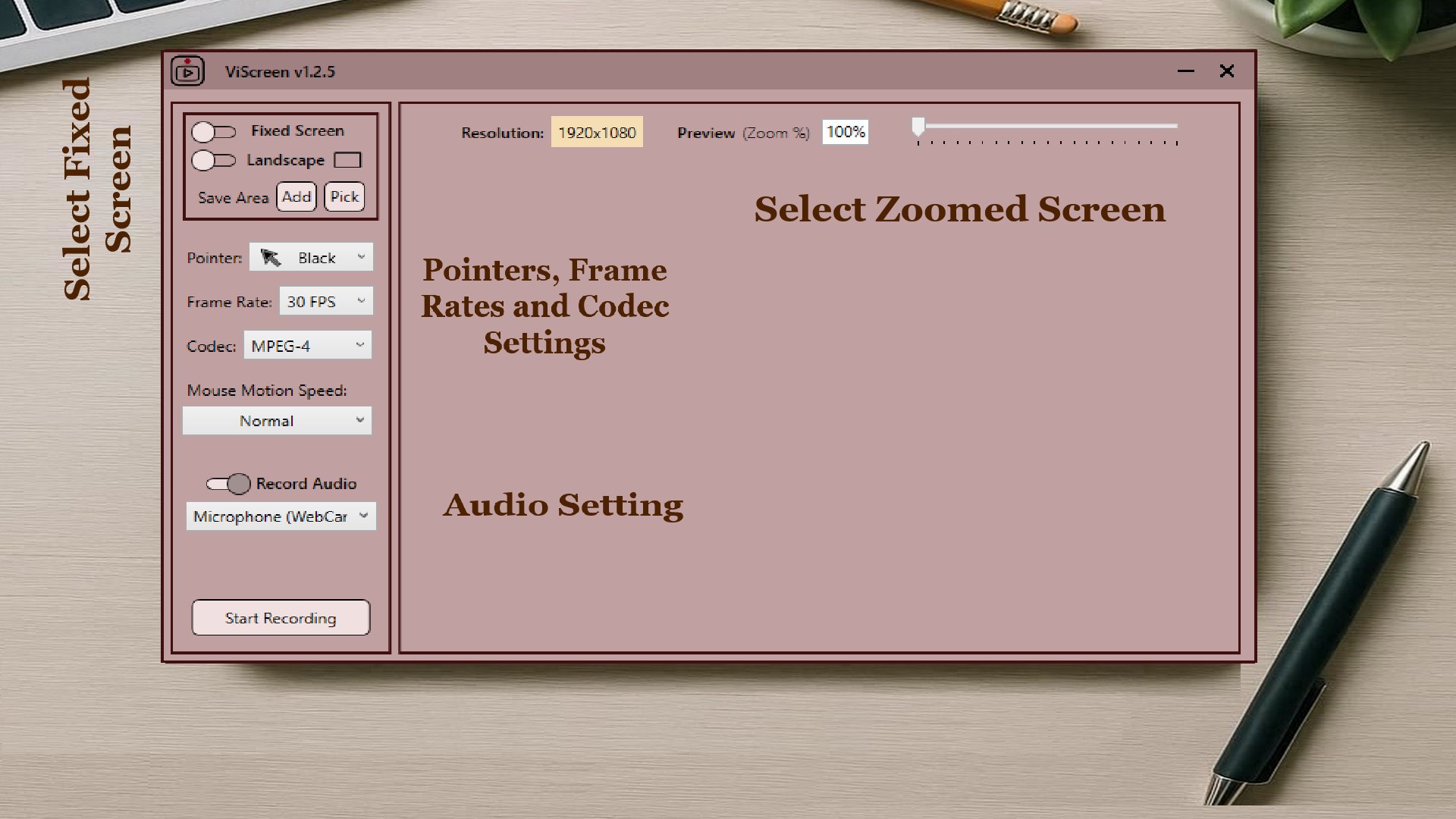
ViScreen is a Windows desktop recorder sold once on the Microsoft Store for $14.99, with no watermark, no recording time limit, no account and no subscription. It records a fixed 16:9 or 9:16 frame or a zoomed region that follows the cursor, captures system audio and microphone, and offers 30 or 60 FPS with a choice of DIVX, XVID or MPEG codec. Areas can be saved and reused between sessions.
What it deliberately is not: a streaming tool, a video editor, or a hosted service with a shareable link. If you need live streaming, OBS is free and better at it. If you need hosted sharing and viewer analytics, that is what the subscription products sell and the subscription is what pays for it. If you need to record your screen properly on Windows and stop thinking about it, a one-time purchase is the cheaper trade over any horizon longer than a few months.
Whatever you choose, the settings that most affect the result are frame rate and codec — covered in frame rate, codec and file size.
Get ViScreen
No watermark, no time limit, no subscription. A Windows screen recorder bought once.
View on the Microsoft Store$14.99 USD · one-time purchase · Windows 10 & 11
Frequently asked questions
Is there a screen recorder for Windows with no watermark?
Yes, several. OBS Studio is free, unlimited and watermark-free, though it is built around live streaming and takes configuration. ViScreen is a simpler one-time purchase at $14.99 on the Microsoft Store with no watermark, no time limit and no subscription. The watermarked options are typically free tiers of subscription products, where the watermark exists to encourage upgrading.
Why do free screen recorders add watermarks?
Because the free tier is marketing for the paid one, and a watermark creates the pressure to upgrade — particularly for client-facing or published recordings where it looks unprofessional. The same logic drives the other common limits: five- or ten-minute caps and reduced export resolution.
Is OBS Studio better than a paid screen recorder?
For live streaming and complex multi-source scenes, OBS is free and hard to beat. For quickly recording a defined area of your screen with audio, its scene-and-source model is more machinery than the task needs. The honest comparison is configuration time against purchase price rather than capability against capability.
Can Windows record the screen without extra software?
Yes — Game Bar and the Snipping Tool both capture video at no cost. The limitations are in control rather than quality: little say over the exact capture area, no aspect-ratio framing for vertical video, and an orientation around games and single windows rather than arbitrary desktop regions.
Is a one-time purchase screen recorder cheaper than a subscription?
Over any horizon beyond a few months, yes, for someone recording occasionally. The calculation changes if you need what subscriptions actually fund — hosted video, shareable links, viewer analytics, team libraries. If you save files locally and share them yourself, the recurring cost buys infrastructure you are not using.
How do I tell if a free screen recorder has hidden limits?
Test the export rather than the recording. Watermarks are applied on export, resolution caps on save, and length limits when you stop. Record thirty seconds, take it through to a finished file, and check the result before trusting the tool with anything that matters.