How to Record Vertical 9:16 Video on a Windows PC
You record a tutorial on a 1920×1080 monitor, then crop it to 9:16 for Reels. The crop keeps a 608-pixel-wide strip out of 1920 — you have thrown away two thirds of the frame, and what survives gets upscaled until the text is soft.
Vertical is now the default for short-form video, but desktop monitors are relentlessly horizontal. Almost everyone resolves that mismatch in the wrong order: record wide, crop later. Doing it the other way round takes the same effort and produces a materially better file.
Why cropping afterwards costs you so much
The arithmetic is stark. A 1080p landscape capture is 1920×1080. A 9:16 crop from it is at most 608×1080. To upload at the platform standard of 1080×1920 you then have to upscale that strip by roughly 1.8×, and upscaling does not add detail — it enlarges what is there, along with every compression artefact.
The visible consequences are consistent: interface text turns soft, thin lines and borders blur, and the whole clip looks slightly out of focus in a feed full of natively vertical video shot on phones.
| Approach | Pixels you keep | Result |
|---|---|---|
| Record 16:9, crop to 9:16 | About a third of the frame, then upscaled | Soft text, visible artefacts |
| Record 16:9, letterbox with bars | All of it, but small | Content occupies a strip in the middle of the screen |
| Record natively in 9:16 | Every pixel is in the delivered frame | Sharp, and framed the way it will be watched |
Recording in portrait on a landscape monitor
The technique is to define a portrait-shaped capture region on part of your screen and record only that. ViScreen supports a fixed 9:16 frame for exactly this, and lets you save the area so the same region is reused next time — which matters more than it sounds when you are producing a series and want every clip framed identically.
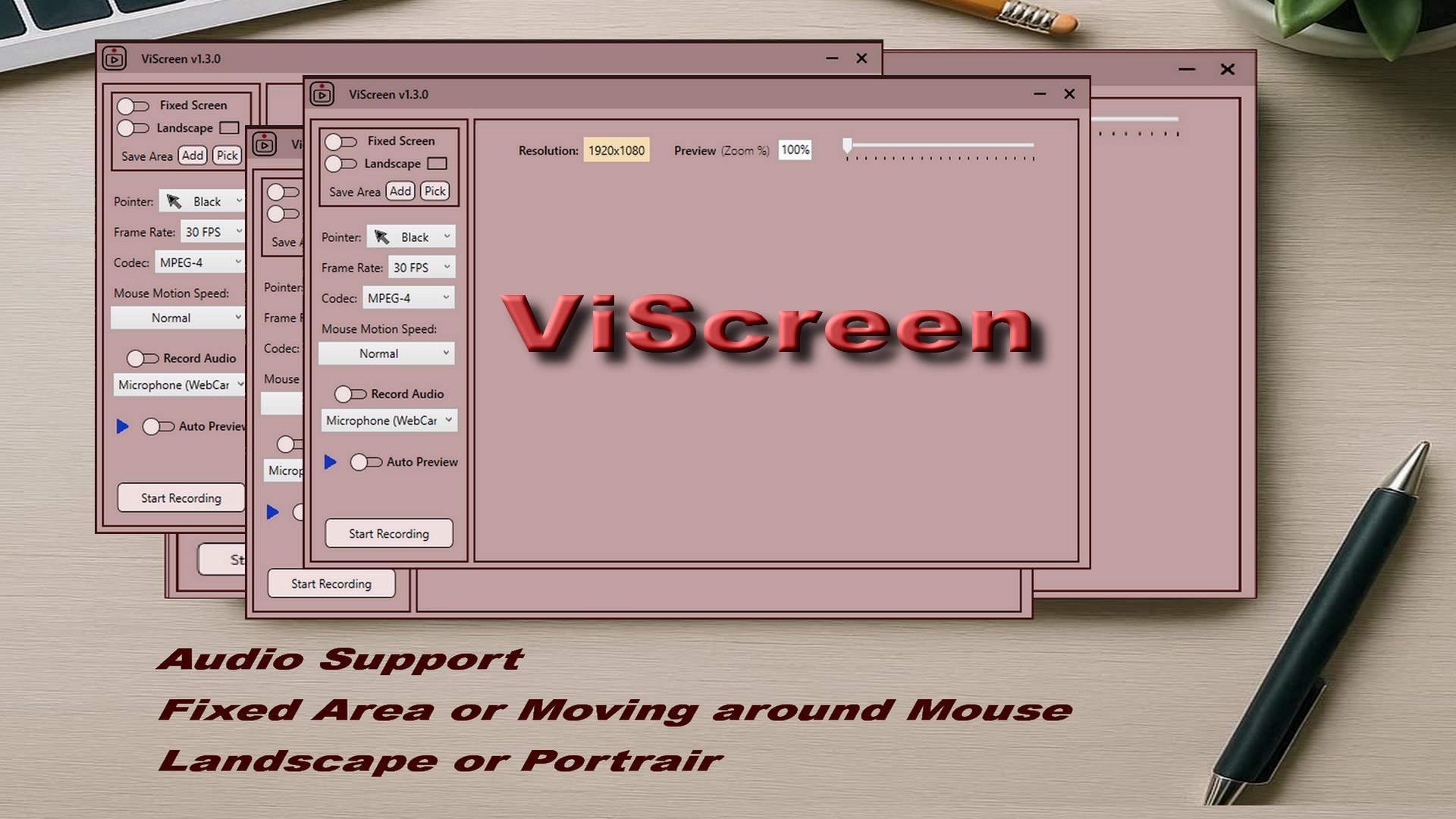
The workflow
The only real preparation is arranging what you want to film so it fits a tall, narrow rectangle before you start recording.
-
Arrange the shot before you record
Resize the application window tall and narrow, raise its zoom level so text stays readable, and close toolbars you are not demonstrating. A 9:16 frame is unforgiving of clutter.
-
Select the 9:16 portrait frame
In ViScreen, choose the fixed frame in portrait orientation rather than landscape. The frame constrains the capture to the correct shape from the start, so nothing has to be cropped later.
-
Position the frame over the content
Drag the frame over the part of the screen you are demonstrating. What sits inside the frame is exactly what is recorded — nothing outside it appears in the file.
-
Save the area for the rest of the series
Save the selected region so the same frame can be recalled next session. Every clip in a series then shares identical framing, which is what makes a set of videos look deliberate.
-
Set frame rate and audio, then record
30 FPS is normally right for screen content. Enable system audio, microphone, or both depending on whether you are narrating, then start recording.
-
Check the dimensions before uploading
Confirm the output is close to 1080×1920 rather than merely 9:16-shaped, and export to H.264 MP4 from your editor if you are uploading to a social platform.
Design the shot for the shape. A full desktop application will never look right squeezed into 9:16. Resize the window narrow, increase its zoom level so the text stays large, and hide toolbars you are not demonstrating. Vertical video is watched on a phone at arm’s length — anything you would not be able to read there should not be in frame.
Before you upload
Two practical notes. First, check the delivered dimensions rather than trusting the aspect ratio: platforms expect roughly 1080×1920, and a 9:16 frame captured from a smaller screen region will be correctly shaped but lower resolution.
Second, on format. ViScreen records with your choice of DIVX, XVID or MPEG codec, which editors read directly. If you are uploading straight from the capture rather than editing it, export to H.264 MP4 first — that is the format every social platform expects, and going up with anything else invites a re-encode you did not control.
The related trap: recording in 60 FPS you do not need
Short-form video of a screen rarely benefits from 60 FPS. Interface motion is mostly static frames punctuated by scrolls, and the doubled frame rate mainly doubles the file. 30 FPS is usually the right setting for talking-over-an-app content — the trade-offs are set out in frame rate, codec and file size.
Get ViScreen
Record natively in 9:16 portrait or 16:9 landscape, with a saved frame you can reuse.
View on the Microsoft Store$14.99 USD · one-time purchase · Windows 10 & 11
Frequently asked questions
How do I record vertical video on a Windows PC?
Define a portrait-shaped capture region and record only that area, rather than recording the full screen and cropping afterwards. ViScreen provides a fixed 9:16 frame you position over the part of the desktop you are demonstrating, and the area can be saved and reused so every clip in a series is framed identically.
Is it better to record in 9:16 or crop a 16:9 recording?
Record natively. Cropping 9:16 out of a 1920×1080 capture keeps a strip about 608 pixels wide, which must then be upscaled roughly 1.8× to reach the 1080×1920 platforms expect. Upscaling enlarges detail rather than adding it, so interface text ends up soft. Recording in portrait keeps every captured pixel inside the delivered frame.
What resolution should vertical screen recordings be?
Around 1080×1920 for TikTok, Reels and Shorts. Note that a correctly shaped 9:16 frame is not automatically that resolution — if you capture a small portrait region on a 1080p monitor, the shape is right but the pixel dimensions are lower, so check the output size rather than the aspect ratio.
Can OBS or Windows Game Bar record vertical video?
OBS can, by reconfiguring the canvas resolution to a portrait size and adjusting your scene, which works but is a per-project setup step. Game Bar records a window or the full screen at its native landscape shape with no aspect control. A recorder with a portrait frame you position directly avoids the configuration in both cases.
How do I make a desktop app look right in vertical video?
Design the shot for the shape rather than filming a wide layout and hoping. Resize the window tall and narrow, increase the application's zoom so text stays large, and hide toolbars and panels you are not demonstrating. Vertical video is watched on a phone, so anything unreadable at that size should be out of frame.
What format should I upload vertical screen recordings in?
H.264 MP4 is what every social platform expects. ViScreen records using DIVX, XVID or MPEG, which editors open directly, so export to MP4 from your editor before uploading rather than sending the raw capture and letting the platform re-encode it for you.