How to Record Your Screen With Sound on Windows
You record a ten-minute walkthrough, narrate the whole thing, stop, play it back — and it is silent. This is the single most common screen recording failure, and it is almost never the recorder malfunctioning.
The reason it happens so consistently is that "sound" on a PC is not one thing. There are two entirely separate sources, and most people who end up with a silent file captured neither, or captured the wrong one.
The two kinds of audio, and why the difference matters
| System audio | Microphone | |
|---|---|---|
| What it is | What the computer plays — video, app sounds, the other people on a call | What your microphone hears — you |
| Needed for | Demonstrating audio in software, capturing a video, recording a meeting | Narration, commentary, explanation |
| Common failure | Not enabled, so the demo plays silently | Wrong device selected, or muted at the OS level |
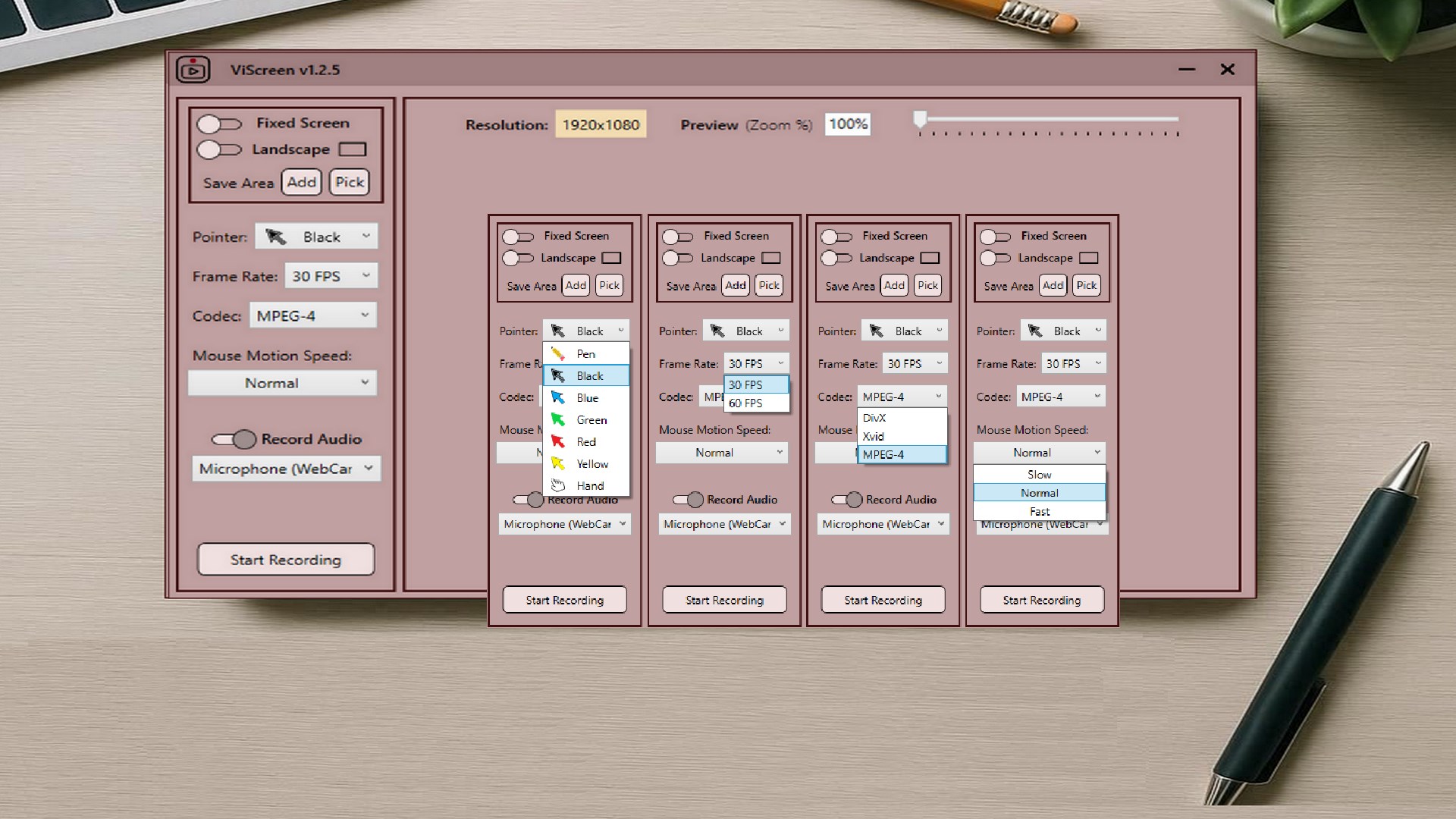
Most walkthroughs need both: the interface making its sounds and you explaining what is happening. ViScreen supports system audio and microphone recording, and the decision of which to enable is made before you press record — which is precisely why the mistake is only discovered afterwards.
Why Windows makes this harder than it should be
Windows historically had no straightforward route to capturing system audio. "Stereo Mix", the classic workaround, is disabled by default on most machines and absent entirely from many modern audio drivers, which is why so much advice on this topic tells you to enable a setting that does not exist on your PC.
The built-in Game Bar records system audio from the focused application and can add the microphone, but it is oriented around games and single windows rather than arbitrary desktop capture. A recorder that exposes both audio sources as plain checkboxes removes the whole category of problem.
Setting it up so it works the first time
The single most valuable habit in screen recording is the ten-second test, and it is step one for a reason.
-
Decide which audio you actually need
Narration only means microphone. Demonstrating something that makes noise means system audio. A walkthrough with commentary means both — and this is the choice that has to be made before recording, not after.
-
Check the microphone Windows will use
Open Windows sound settings and confirm the default input is the microphone you intend — laptops frequently default to a webcam or dock microphone rather than your headset. Speak and watch the input level move.
-
Enable the audio sources in ViScreen
Turn on system audio, microphone, or both before selecting your capture area. Neither is captured retrospectively, so a source left off is simply absent from the file.
-
Wear headphones if you are capturing system audio
Listening through speakers means your microphone re-records whatever the computer plays, producing echo and doubled voice. Headphones remove the problem entirely.
-
Record a ten-second test and listen to it
Say a sentence, trigger a sound in the application, stop, and play the file back. This ten-second habit prevents almost every silent-recording disaster.
-
Record the real thing, then verify before you delete anything
Play the finished file through before closing the application you were demonstrating, so a re-record is cheap if something was wrong.
Never record something long without testing first. Record ten seconds, say a sentence, play a sound in the app, stop, and listen to the file. Ten seconds of checking has saved more re-recorded walkthroughs than any other habit — and unlike everything else on this page, it catches problems you have not thought of.
Fixing a silent or bad recording
| Symptom | Usual cause |
|---|---|
| No sound at all | Neither audio source was enabled before recording started |
| Narration but no app sound | Microphone captured, system audio not enabled |
| App sound but no narration | Wrong input device — often a webcam or dock microphone rather than your headset |
| Narration very quiet | Input level low in Windows sound settings, or you are too far from the microphone |
| Echo or doubled voice | Your voice reaching both the microphone and the system audio through speakers — use headphones |
| Audio drifts out of sync in long recordings | Dropped frames from an overloaded PC; lower the frame rate or capture a smaller area |
The echo case is worth singling out because it confuses people: if you are capturing system audio and listening through speakers, your microphone records your voice and the speakers replay it into the capture. Headphones eliminate it entirely.
A note on recording meetings
Capturing system audio records the other participants on a call. In many jurisdictions recording a conversation without the participants’ knowledge is unlawful, and in most workplaces it breaches policy regardless of legality. Tell people you are recording — and if the platform offers its own recording feature with a visible indicator, prefer it.
If the recording is a tutorial rather than a meeting, the next thing worth getting right is what the viewer can actually read: see recording with a cursor-following zoom.
Get ViScreen
Record your screen with system audio, microphone, or both. Windows 10 and 11, bought once.
View on the Microsoft Store$14.99 USD · one-time purchase · Windows 10 & 11
Frequently asked questions
How do I record my screen with sound on Windows?
Enable the audio sources before you start: system audio for what the computer plays, microphone for your narration, or both for a walkthrough with commentary. ViScreen exposes both as options alongside the capture area. Neither can be added retrospectively, which is why recordings come out silent — the source was not enabled at the time.
Why does my screen recording have no sound?
Almost always because no audio source was enabled before recording, or the wrong one was. If you hear yourself but not the application, system audio was off. If you hear the application but not yourself, the microphone was off or Windows was using a different input device — laptops often default to a webcam or dock microphone instead of your headset.
How do I record system audio on Windows?
Use a recorder that captures system audio directly. The classic 'Stereo Mix' workaround is disabled by default on most PCs and missing entirely from many modern audio drivers, which is why so much advice about it does not apply to your machine. ViScreen offers system audio capture as a straightforward option.
Why does my screen recording have an echo?
Because you are capturing system audio while listening through speakers, so your microphone records your voice directly and again as the speakers replay it. Wear headphones and the echo disappears. This is also the usual cause of a doubled or hollow-sounding voice.
How do I record my screen and my voice at the same time?
Enable system audio and microphone together before recording. Test with ten seconds first — say a sentence, trigger a sound in the app, stop and listen — because the two sources fail independently and you will not know which one is missing until you play the file back.
Is it legal to record a meeting by capturing system audio?
Recording laws vary by jurisdiction and some require the consent of all parties, so recording a conversation without participants knowing may be unlawful and in most workplaces breaches policy regardless. Tell people you are recording, and prefer the meeting platform's own recording feature where it shows a visible indicator. This is general information rather than legal advice — check the rules that apply where you are.