How to Track and Bill Meeting and Phone-Call Time You Never Wrote Down
The forty-minute call where the scope actually got decided is, for most freelancers, the least likely piece of work in the week to appear on an invoice. It left no file, no commit and no email. It exists only in your memory and, if you are lucky, a calendar entry.
This is the structural blind spot in every automatic time tracker, and it is worth being honest about it: software that watches your screen cannot see a phone pressed to your ear, a site visit, or an hour at a whiteboard. Any tool claiming to capture that automatically is inferring, not recording.
The cost is not trivial. For consultants and agencies, client communication routinely accounts for a meaningful share of the working week, and because it is the least documented category it is the first to be written off — quietly, by the person who did the work, every single month.
Why off-screen time goes missing
- It starts without warning. A client rings; you answer. There is no moment at which starting a timer feels natural.
- Your hands are busy. During a call you are listening and taking notes, not operating a tracking app.
- It feels like overhead. Talking does not feel like billable output the way a delivered file does — even when the call is where the decision was made.
- The calendar lies about duration. The meeting was booked for thirty minutes. It ran to fifty-five. The calendar still says thirty, and thirty is what gets billed.
Two mechanisms, depending on when you remember
There are exactly two moments at which you can capture off-screen time: while it is happening, or afterwards. A workable system needs both, because you will use each about half the time. Taskool provides a stopwatch for the first case and a manual entry form for the second, and — importantly — both write into the same projects as automatically tracked screen sessions, so the invoice does not treat them differently.
-
Start the stopwatch as you answer
For a call you know is starting, open Taskool from the system tray and start the stopwatch before you speak. It runs while the call does, so the recorded duration is the real one rather than the one the calendar predicted.
-
Stop it and file it against the client
End the stopwatch when the call ends and drop the session onto the client’s project. It now sits alongside automatically tracked screen sessions and inherits the project’s hourly rate.
-
Use manual entry for calls you did not catch
For the ones you only remember afterwards, add the block by hand: date, start time, duration, project. Do it immediately after the call, while you still remember that it overran.
-
Check the duration against the calendar, not the booking
A meeting booked for thirty minutes that ran to fifty-five should be logged at fifty-five. Systematically billing the booked length rather than the actual one is one of the largest sources of quiet under-billing in consulting work.
-
Give the call a rate if it earns one
Where strategy or scoping calls are worth more than production work, set a rate on that activity so the invoice reflects its value rather than defaulting to a general rate.
-
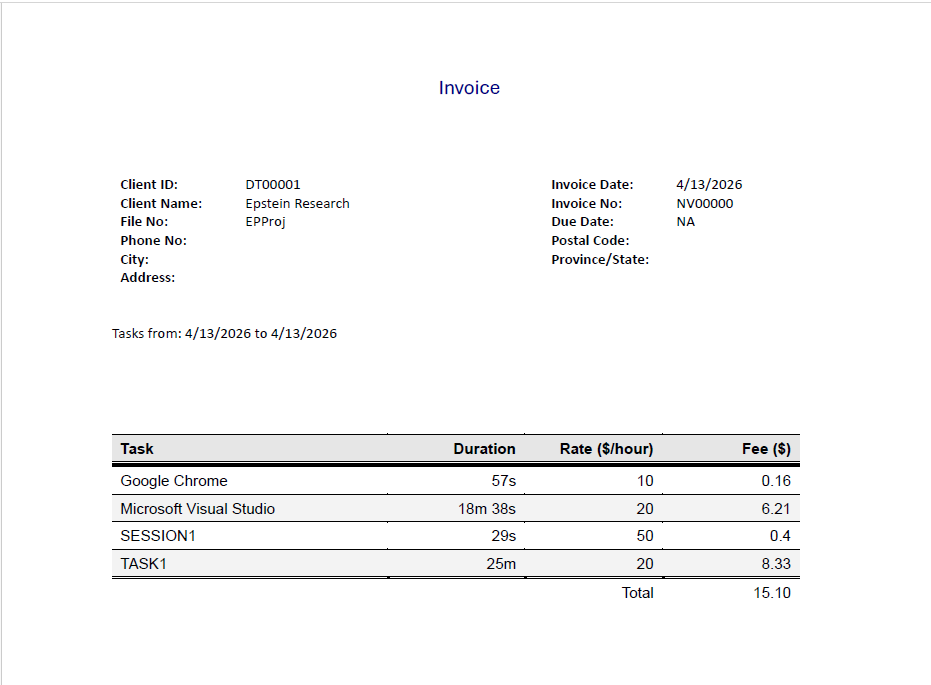
Include calls as visible invoice lines
When you generate the invoice, let meeting time appear as its own line rather than folding it into a total. It documents work the client would otherwise assume was free, and it makes the total easier to defend.
Bill the meeting at the rate the meeting deserves. Scope and strategy calls are often the highest-value hour of the week, and billing them at a generic rate — or not at all — is a pricing decision made by accident. Because rates can be set per activity as well as per project, a client call can carry its own rate. See the guide to per-client and per-task rates.
The habit that makes it stick
Whatever the tool, the discipline is the same and it is small: log the call before you do anything else. Not after the follow-up email, not at the end of the day. The window in which you accurately remember that the call ran fifty-five minutes rather than the booked thirty is about ninety seconds long, and manual entry inside that window is the difference between an accurate invoice and a generous one.
Everything else can be recovered later — screen work is on the log, files carry timestamps. Off-screen time is the one category with no backup copy, which is precisely why it earns the only piece of manual discipline in the workflow.
Getting it onto the invoice
Once logged, meeting and call time behaves like any other session: it belongs to a project, carries that project’s rate, and appears as a line item when you run the invoice generator, exporting to PDF, Word or Excel alongside your screen work. Listing calls explicitly is also good client hygiene — it makes visible a category of work most clients assume is free. The rest of the workflow is in the automatic tracking and invoicing guide.
Get Taskool
Automatic screen tracking, plus a stopwatch and manual entry for the work that happens away from it.
View on the Microsoft Store$10.49 USD · one-time purchase · Windows 10 & 11
Frequently asked questions
How do I track billable time for phone calls and meetings?
Off-screen work has to be captured manually, because screen-based trackers cannot see it. Use a stopwatch started as the call begins, or a manual entry added immediately afterwards. In Taskool both options file into the same client projects as automatically tracked screen time, so they carry the project’s hourly rate and appear on the same invoice.
Can automatic time trackers record phone calls?
No — an automatic tracker records which window is active on your PC, so a call taken on a phone, a site visit or a whiteboard session leaves no trace. This is a limitation of the whole category, not of a particular product, and it is why a usable system pairs automatic screen tracking with a stopwatch and manual entry.
Should I bill clients for meeting time?
Meeting time is normally billable in consulting and professional services when it concerns the engagement — scoping, review, decision-making and status calls. What varies is how it is presented. Listing it as its own invoice line rather than absorbing it into a total makes the work visible and is easier to defend when queried.
How long should I round a client call to?
Log the actual duration and round only if your engagement letter specifies an increment. The common error is the opposite: billing the length the meeting was booked for rather than the length it ran. Meetings overrun far more often than they finish early, so booked-length billing is a systematic under-charge.
What if I forget to log a call entirely?
Reconstruct it from your call log or calendar as soon as you notice, and enter it manually with a conservative duration. If this is happening regularly, the fix is to log calls in the first ninety seconds after they end, while you still remember the real length — the window for accurate recall is short.
Do I need a separate app for meeting time and screen time?
You should not. Splitting them across two tools guarantees one of them is missing at invoice time. Taskool keeps automatic screen tracking, the stopwatch and manual entry in one Windows app, all writing into the same projects and the same invoice, as a one-time $10.49 purchase.