How to Track Billable Hours Automatically and Turn Them Into an Invoice
The problem is almost never the invoice. It is the half hour on Friday afternoon spent staring at a calendar, a browser history and a Slack thread, trying to work out how much of Tuesday was actually billable — and quietly writing off the parts you cannot prove.
Manual timers fail for a predictable reason: they require you to remember, at the exact moment your attention shifts, to go and click something. Deep work is the state in which you are least likely to do that. Studies of professional-services billing consistently find that reconstructing hours from memory understates them, because the small fragments — the ten-minute revision, the email that took twenty — are the first to disappear.
The fix is to invert the workflow. Instead of deciding in advance that something is billable, record everything passively and decide afterwards what belongs to which client. This guide walks through that approach on Windows, using Taskool, and ends with the part most time trackers leave to a second app: producing the actual invoice.
Why manual timers lose you money
Three failure modes account for most of the gap between hours worked and hours billed:
| Failure | What it costs | What fixes it |
|---|---|---|
| Forgetting to start the timer | Whole sessions vanish; typically the deepest ones | Passive active-window logging |
| Forgetting to stop it | Inflated hours you have to guess at and discount | Session boundaries detected from window changes |
| Fragmented work | Ten- and fifteen-minute tasks never get logged at all | A short-session threshold that keeps real work and drops noise |
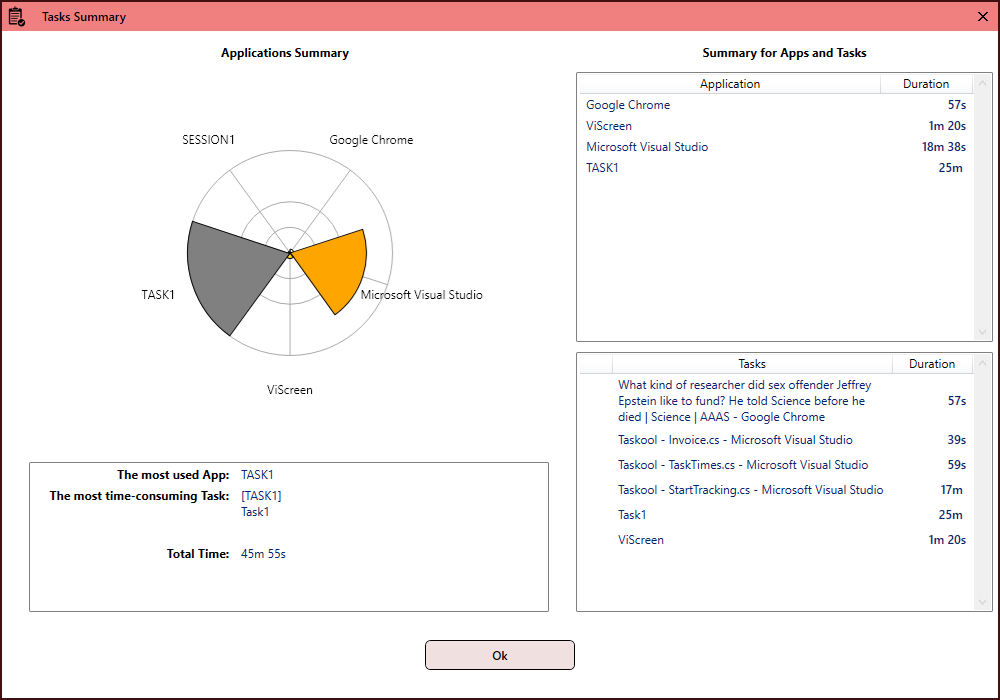
An automatic tracker addresses all three by watching the active window rather than waiting for input. Taskool applies a 15-second threshold: below it, an activity is treated as a glance and discarded; above it, it becomes a session. That single rule is what separates a usable log from a wall of noise, because without it your day reads as four hundred entries and you will never sort it.
The five-step workflow
-
Install and leave it running
Install Taskool from the Microsoft Store and let it sit in the system tray. From that point it records active-window sessions on its own — there is nothing to start each morning.
-
Let the 15-second filter do the sorting
Anything shorter than 15 seconds is discarded, so alt-tabbing to check a notification never becomes an invoice line. What is left is real work sessions.
-
Assign sessions to projects
At the end of the day or the week, drag sessions onto the client or project they belong to. The daily summary shows where the hours and the money actually went.
-
Add the offline work
Use the stopwatch for live calls, or the manual entry form for a meeting you have already had, so phone and whiteboard time is billed alongside screen time.
-
Set the rate and generate the invoice
Give each project its hourly rate, then run the invoice generator. Hours become line items, line items become a total, and the invoice exports to PDF, Word or Excel.
The rate detail that matters. Rates can be set per project and per application, so a week that mixes billable design work at one rate with lower-rate admin produces a correct invoice without you doing the arithmetic. This is where most spreadsheet workflows quietly go wrong.
Handling work that happens away from the screen
Automatic tracking has one honest limitation: it sees your screen, not your day. A ninety-minute client call on your phone, a site visit, a whiteboard session — none of it registers. Any tracker that claims otherwise is guessing.
Taskool covers that gap with two manual paths. The stopwatch runs live for calls and meetings; manual entry adds a block of time after the fact for anything you did not catch. Both write into the same project as automatic sessions and bill at the same rate, so the invoice does not distinguish between them.
Where the data lives
Passive tracking is only acceptable if you know where the record goes. Most automatic trackers are cloud products: your activity stream leaves your machine and lives on a vendor's server, which is a genuine problem if you work under an NDA, handle client data, or bill agencies whose security policy forbids third-party monitoring tools.
Taskool stores everything locally on the PC. There is no account, no sync and no upload — the tracking log never leaves the device, which is also why it keeps working with the network off.
What this replaces
The usual stack for this job is a subscription time tracker plus a separate invoicing tool, billed monthly, per seat. For a team that makes sense. For one person billing a handful of clients it is a recurring cost against a task that takes minutes a week.
Taskool is a one-time purchase — no seat fee, no subscription, no account — and does both halves: the tracking and the invoice. It runs on Windows 10 (17763 or later) and Windows 11, sits in the system tray, and requires .NET 8.0.
Get Taskool
Automatic time tracking and invoice generation for Windows, in one app that stays on your PC.
View on the Microsoft Store$10.49 USD · one-time purchase · Windows 10 & 11
Frequently asked questions
How can I track billable hours without remembering to start a timer?
Use an automatic time tracker that logs the active window instead of waiting for you to press start. On Windows, Taskool records which application and document you were actually in, ignores anything under 15 seconds so that a quick glance at your inbox is not logged as work, and assembles the result into a session list you assign to projects afterwards.
How do I turn tracked hours into an invoice?
Assign each tracked session to a project, set the hourly rate for that project or application, then run the built-in invoice generator. Taskool multiplies hours by rate per line, totals the invoice and exports it as a PDF, Word or Excel file you can send to the client directly.
What if I did work away from the computer, like a client call?
Automatic tracking only sees screen activity, so offline work needs a manual entry. Taskool includes a stopwatch for live calls and meetings, and a manual entry form for adding a block of time after the fact. Both land in the same project and bill at the same rate as automatic sessions.
Is automatic time tracking a privacy risk?
It depends entirely on where the data goes. Most automatic trackers are cloud services that upload your activity to a vendor server. Taskool stores everything in a local database on your own PC and never uploads it, which is what makes it usable under NDA or on client machines where cloud tools are not permitted.
Do I need a monthly subscription for automatic time tracking?
No. Most automatic trackers bill per user per month, which is why the category is expensive for solo freelancers. Taskool is a one-time purchase of $10.49 on the Microsoft Store with no account, no seat fee and no recurring charge.
Can I bill different clients at different hourly rates?
Yes. Rates are set per project, and can also be set per application or activity — useful when design work and admin work bill differently for the same client. Each invoice line carries its own rate, so a mixed week produces a correct total without manual arithmetic.